How React Native Works Under the Hood

文章目录
React Native lets you describe a screen with JavaScript and render it using real iOS and Android views. I've wanted to unpack what happens between those two steps for a long time, so I made a short video series about it. This article brings that explanation together, with diagrams and code you can take your time with.
🔗 For the best reading experience, read this article on my Code with Beto blog.
You've probably heard names like Metro, Hermes, JSI, and the UI thread without a clear picture of how they fit together. We'll follow one pink circle from its JSX to the screen, then tap it and trace the update through the system.
You'll be comfortable here if you've used React components, props, state, and JSX, and have tried React Native. You don't need to know C++, Swift, or Kotlin. We're following the modern rendering architecture, Fabric.
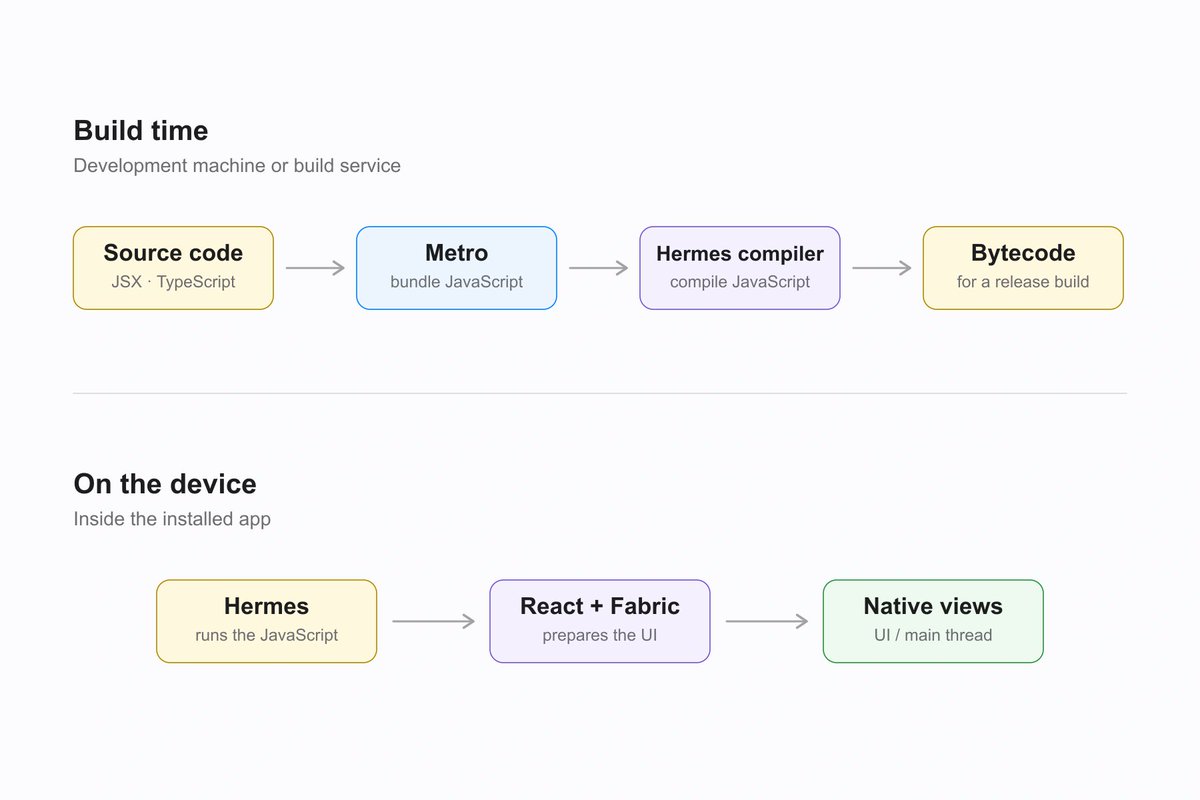
Metro and the Hermes compiler prepare the release on a build machine. Inside the installed app, Hermes executes the code and Fabric coordinates the native UI.
Start with one circle
This is enough code to describe our screen:
import { View } from "react-native";

export default function App() {
  return (
    <View
      style={{
        flex: 1,
        alignItems: "center",
        justifyContent: "center",
      }}
    >
      <View
        style={{
          width: 200,
          height: 200,
          borderRadius: 100,
          backgroundColor: "#FF2D55",
        }}
      />
    </View>
  );
}
The outer View centers its child. The inner View has equal width and height, a large border radius, and a pink background.
On iOS and Android, React Native's core UI components are backed by native views, the platform's building blocks for displaying content and handling interaction. Our circle becomes a styled native view. You can see the same relationship with components like Text and TextInput. React Native's component guide explains these platform connections.
The JavaScript still runs as JavaScript. Several pieces of the framework work together to turn that description into something the operating system can display.
Metro turns JSX into JavaScript
Your application starts as a collection of files: components, utility functions, imports, and dependencies. Metro follows those imports from the entry point, transforms the modules into runnable JavaScript, and packages them into a bundle. TypeScript types, if you're using them, are removed. Metro describes these stages as resolution, transformation, and serialization.
Here's the actual transformed App function from our example. I generated it with Metro 0.83.7 and the React Native 0.83.6 Babel preset, using release-style settings. The surrounding module wrapper and dependency imports are omitted:
function App() {
  return /*#__PURE__*/(0, _jsxRuntime.jsx)(_reactNative.View, {
    style: {
      flex: 1,
      alignItems: "center",
      justifyContent: "center"
    },
    children: /*#__PURE__*/(0, _jsxRuntime.jsx)(_reactNative.View, {
      style: {
        width: 200,
        height: 200,
        borderRadius: 100,
        backgroundColor: "#FF2D55"
      }
    })
  });
}
The angle brackets are gone. Each JSX element becomes a call to jsx, with the component type and a props object. The child is passed through the children prop. Our dimensions and color are still there as JavaScript values.
_reactNative and _jsxRuntime are generated references to dependencies. The transform step wraps each module; serialization assigns the dependency IDs that connect those modules in the bundle. This excerpt is the transformed App module, not a complete runnable application bundle. Exact output varies with the Metro version and configuration.
At this stage, we have JavaScript function calls. No Swift or Kotlin screen has been generated.
Hermes compiles and runs the JavaScript
Hermes is the JavaScript engine used by default in React Native. In a standard release build with Hermes enabled, the Hermes compiler turns the JavaScript bundle into bytecode during the build. The installed app includes that bytecode and the engine that executes it. React Native's Hermes guide explains this release-build setup.
Bytecode is a binary format, so opening it as text won't show a readable version of your component. A disassembler turns those instructions into a form we can inspect. I compiled the transformed module above with Hermes compiler 0.14.1, then disassembled the resulting HBC version 96 file. Here's an excerpt from the App function:
GetEnvironment    r0, 0
LoadFromEnvironment r1, r0, 1
GetByIdShort      r3, r1, 1, "jsx"
LoadFromEnvironment r1, r0, 0
GetByIdShort      r2, r1, 2, "View"
NewObject         r1
NewObjectWithBuffer r4, 3, 3, 0, 0
PutNewOwnByIdShort r1, r4, "style"
You don't need to memorize these instructions. GetByIdShort reads a property such as jsx or View. NewObjectWithBuffer creates an object from stored keys and values. PutNewOwnByIdShort assigns the style property. The names r0, r1, and so on are the engine's virtual registers for intermediate values.
The same disassembly contains the circle's values in its constant data:
Object Key Buffer (circle excerpt):
[String 10]  → width
[String 11]  → height
[String 15]  → borderRadius
[String 14]  → backgroundColor

Object Value Buffer (circle excerpt):
[int 200]
[int 200]
[int 100]
[String 1]   → #FF2D55
The arrows annotate the dump's string-table entries. This is generated output for our isolated module, which still depends on Metro's module system and the rest of the app. Its instructions describe JavaScript operations; they aren't native UI drawing commands. Different Hermes releases can produce different bytecode.
The distinction between build time and runtime matters here. Compilation happens on your development machine or build service. Execution happens on the device. An installed release can launch its bundled code without a Metro server running on your laptop.
React, JSI, and the Shadow Tree
When our application runs, React calls App and processes what it returns. React elements describe components, their props, and their children. They're JavaScript objects, not the visible views themselves. React Native's architecture glossary defines these pieces and the host components they represent.
Fabric is React Native's rendering system. It connects React's UI description with the platform views, using a shared C++ core for much of the rendering machinery. Sharing this work across platforms helps keep their behavior consistent. Fabric's architecture overview explains why that core exists.
JSI, the JavaScript Interface, is the API that lets the JavaScript engine and C++ interact. Fabric uses this connection to communicate with its C++ core. JSI isn't a separate thread or a layout engine; it's the interface between those parts of the system.
A small JSI example
This is an original teaching example of the interface. It registers a C++ function that JavaScript can call. It isn't Fabric's circle-rendering code:
#include <jsi/jsi.h>
namespace jsi = facebook::jsi;

void installCircleRadius(jsi::Runtime& runtime) {
  auto radius = jsi::Function::createFromHostFunction(
      runtime, jsi::PropNameID::forAscii(runtime, "circleRadius"), 1,
      [](jsi::Runtime& rt, const jsi::Value&, const jsi::Value* args,
         size_t count) -> jsi::Value {
        if (count != 1 || !args[0].isNumber()) {
          throw jsi::JSError(rt, "Pass one numeric diameter");
        }
        return jsi::Value(args[0].asNumber() / 2.0);
      });
  runtime.global().setProperty(runtime, "circleRadius", std::move(radius));
}
createFromHostFunction wraps our C++ callback as a JavaScript function. We give it a name, set its declared argument count to one, and expose it on the runtime's global object. The callback checks the actual arguments before using the value. After native setup calls installCircleRadius, JavaScript can use it like this:
globalThis.circleRadius(200); // 100, calculated in C++
The example was syntax-checked against React Native 0.83.6's JSI headers. It shows the interface itself; a real app also needs native registration and build setup. Fabric uses JSI to expose its own rendering operations. A synchronous call through that interface doesn't automatically move work to a background thread.
The C++ representation
We can see the connection in Fabric's implementation. This excerpt from React Native 0.83.6's UIManagerBinding.cpp reads JavaScript arguments through JSI and passes them to the C++ createNode operation:
return valueFromShadowNode(
    runtime,
    uiManager->createNode(
        tagFromValue(arguments[0]),
        stringFromValue(runtime, arguments[1]),
        surfaceIdFromValue(runtime, arguments[2]),
        RawProps(runtime, arguments[3]),
        std::move(instanceHandle)),
    true);
The arguments carry a node identifier, a component name, a surface identifier, props, and a handle for the React instance. The binding turns them into the types the C++ renderer expects. The corresponding declaration in UIManager.h shows its result:
std::shared_ptr<ShadowNode> createNode(
    Tag tag,
    const std::string &componentName,
    SurfaceId surfaceId,
    RawProps props,
    InstanceHandle::Shared instanceHandle) const;
A std::shared_ptr<ShadowNode> is a shared pointer to a C++ Shadow Node. The renderer builds and connects these objects in memory as the app runs. It doesn't generate a C++ source file for each JSX component.
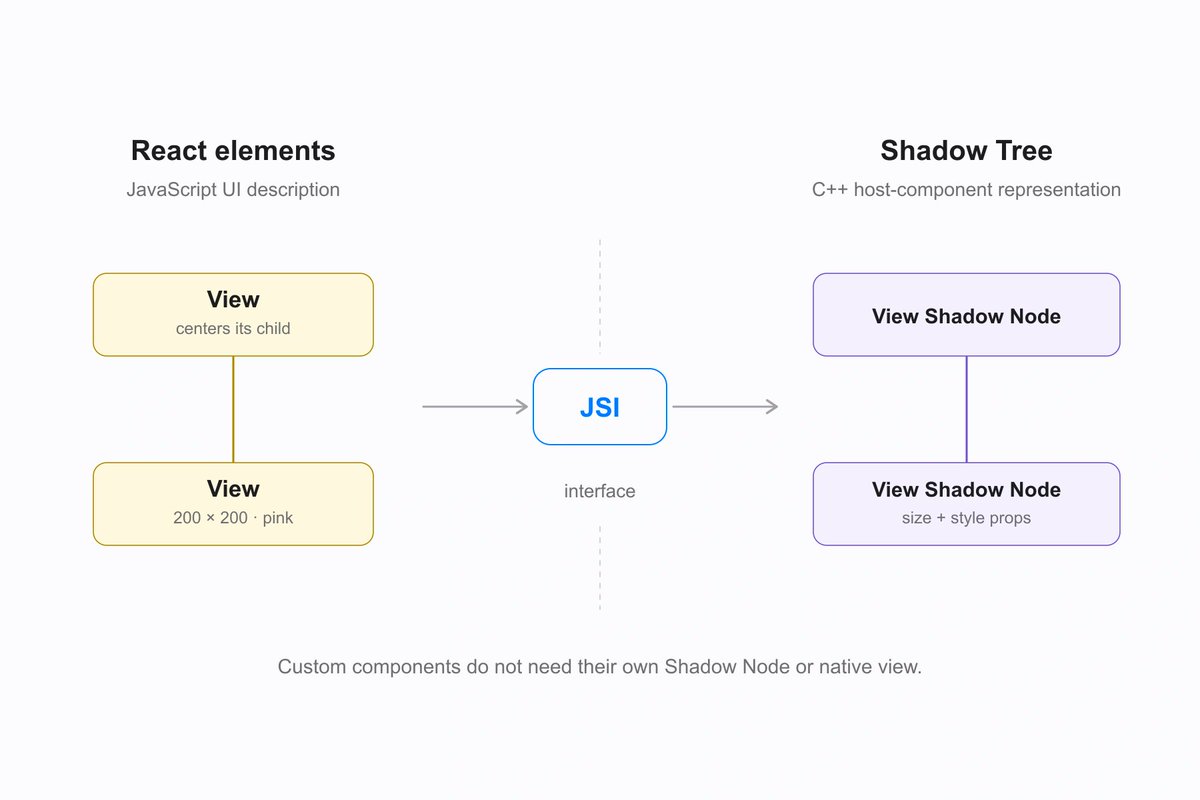
React describes the UI. Through JSI, Fabric creates a C++ representation of its host components: the Shadow Tree. A custom component like App doesn't need its own native view.
That C++ representation is called the Shadow Tree. It carries the information the renderer needs to prepare the native UI, including properties, children, and layout data. A custom component can return other components, so counting JSX tags or component functions won't tell you how many native views an app has.
For our circle, here's a schematic of those C++ objects and their relationships. The prop labels are simplified for readability; this isn't executable C++ or a memory dump:
ShadowTree (surface)
└── RootShadowNode
    └── ViewShadowNode: centering wrapper
        props: flex=1, alignItems=center,
               justifyContent=center
        └── ViewShadowNode: circle
            props: width=200, height=200,
                   borderRadius=100,
                   backgroundColor=pink
App doesn't appear as a separate Shadow Node because it's our React function component. Its output leads to host components such as View. Next, the renderer needs layout measurements for those nodes.
You'll also hear people say the native side. I use that as informal shorthand for the code and platform facilities outside the JavaScript runtime. It can include shared C++ code and platform-specific implementations. It doesn't name one particular thread or one stage of rendering.
For this example, the handoff is already useful: the renderer has the circle's dimensions and background color in a form its native implementation can work with.
Yoga gives the circle a size and position
Our code says “center this child.” The screen needs a position.
Yoga is the layout engine used by React Native. It takes layout styles and constraints and computes sizes and positions. Its job ends at layout; the platform handles displaying the result. Yoga supports a subset of CSS layout behavior, especially Flexbox. Yoga's documentation describes that responsibility directly.
Suppose our parent has 393 × 852 logical units of available space, with no padding. React Native's numeric dimensions are density-independent. The child is 200 × 200. Centering it gives us:
left = (393 - 200) / 2 = 96.5
top  = (852 - 200) / 2 = 326
We can write the resulting frame in a compact form. This is a readable illustration of the layout values, not a JSON dump from Yoga:
circleFrame = {
  x: 96.5,
  y: 326,
  width: 200,
  height: 200,
};
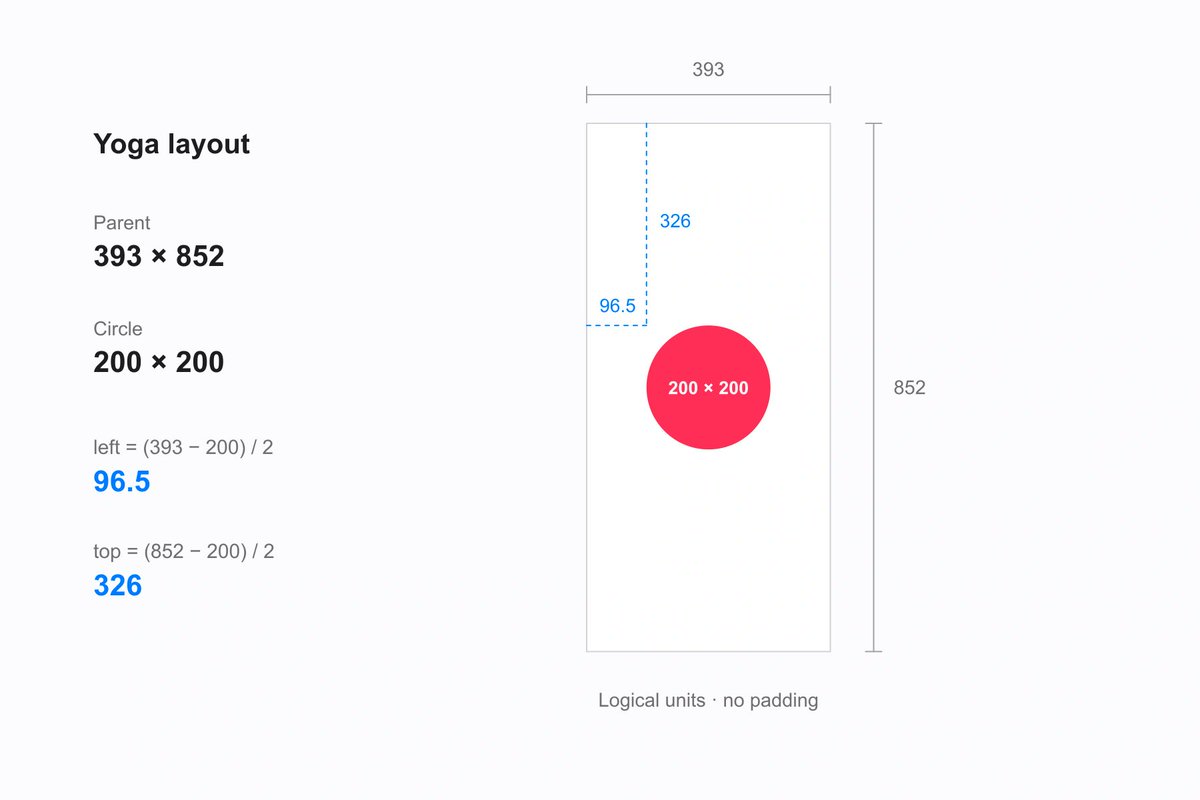
Yoga turns the centering styles and available space into a measured frame. These values use logical units and a parent with no padding.
Those numbers depend on the actual space available to the parent. Safe-area handling, padding, a header, or a different window size can change the result. The arithmetic here makes the centering operation visible; it isn't a promise about a particular phone's full display.
Text adds another consideration: the layout system can ask the platform to measure text so it knows how much space it needs. A fixed-size circle is a deliberately simpler starting point.
Fabric mounts the native view
The rendering pipeline has three broad phases:
-
Render: React evaluates the UI description, and the renderer prepares the Shadow Tree.
-
Commit: The renderer calculates layout and prepares the next tree for mounting.
-
Mount: It compares trees and applies the necessary changes to the platform's views.
On the first mount, the circle needs a native view to be created, configured, and inserted. On later updates, the required operations can be much smaller. The official render pipeline guide walks through both cases.
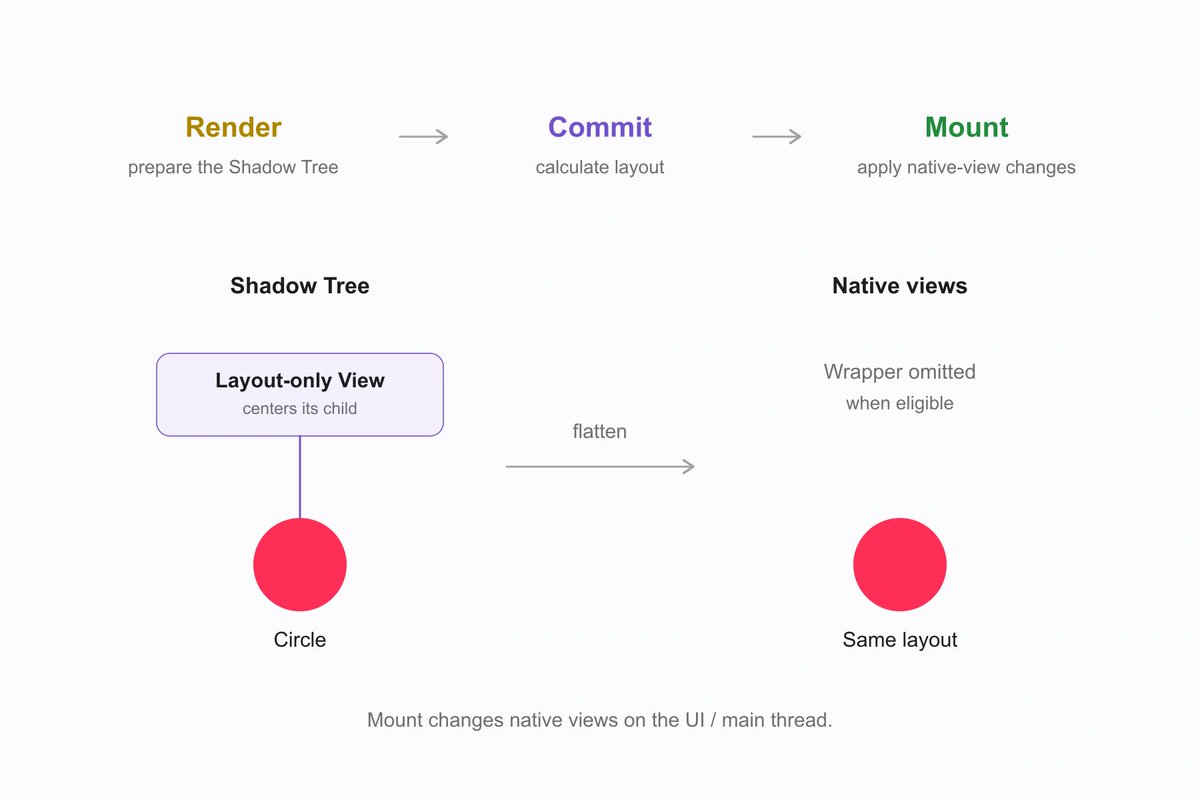
The final native hierarchy can be shallower than the description. Eligible layout-only wrappers contribute to layout without requiring their own host view.
That wrapper is a useful example of an optimization. Our outer View exists to position the circle. When a wrapper is eligible for view flattening, the renderer can keep its layout effect while leaving out an extra native view. Whether a view qualifies depends on its properties and behavior. View flattening reduces unnecessary depth in the native hierarchy.
Before and after view flattening
Here's the difference as a native-view hierarchy. This is a schematic for an eligible layout-only wrapper, not a captured hierarchy from a particular device:
Without flattening
Root surface
└── Layout-only wrapper
    └── Circle view

With flattening
Root surface
└── Circle view
Native views below the root Without flattening: Wrapper + circle With flattening: Circle
Circle frame in root coordinates Without flattening: x: 96.5, y: 326, 200 × 200 With flattening: x: 96.5, y: 326, 200 × 200
Visible result Without flattening: Centered pink circle With flattening: Centered pink circle
Our JSX stays the same. The layout description still determines the circle's position, even when the native hierarchy doesn't need a separate wrapper. This is a renderer optimization, not a source-code rewrite.
A wrapper that must draw something or preserve its own native identity can need a real host view. Properties such as testID, accessibility behavior, or collapsable={false} can prevent flattening. Don't assume every nested View disappears.
From layout to a view on screen
We now have the circle's size, position, color, and radius. Commit records the next version of that description. Yoga calculates the layout during this work; we looked at it separately to make the numbers easier to follow.
Mounting applies that description to the native screen. Fabric compares the old and new trees and works out which views need to be created, updated, or removed. For our first circle, the iOS implementation does three things:
-
Gets a UIKit view. It creates one, or reuses an available view.
-
Configures it. It applies the measured position and size, the pink background, and the corner radius.
-
Attaches it to its parent. The circle becomes part of the visible view hierarchy.
Those changes happen on the UI thread, also called the main thread. React Native already contains the native code that performs them; it passes in our circle's values when the app runs. It doesn't generate a new Swift file. You can follow the implementation in React Native's mounting manager.
The C++ Shadow Tree stays around as the renderer's description. Alongside it, there is now a real UIKit UIView object representing the circle on screen.
The same circle written directly in UIKit
This small Swift example makes those three steps easy to see. I wrote it by hand; React Native does not generate it. The parent is already on screen and has the same 393 × 852 points of space:
import UIKit

// Teaching equivalent, written by hand. Not generated by React Native.
// rootView is already on screen and has 393 × 852 points of space.
@MainActor
func mountCircle(in rootView: UIView) -> UIView {
    let circle = UIView(
        frame: CGRect(x: 96.5, y: 326, width: 200, height: 200)
    )
    circle.backgroundColor = UIColor(
        red: 1, green: 45.0 / 255, blue: 85.0 / 255, alpha: 1
    ) // #FF2D55
    circle.layer.cornerRadius = 100
    rootView.addSubview(circle)
    return circle
}
UIView(...) creates the view and gives it the frame we calculated. The next two assignments make it pink and round. addSubview attaches it to the parent. That's the visible result we've been working toward since the first JSX example. Apple's UIView documentation describes this parent/subview relationship.
This is a fixed-size example. React Native uses Yoga to recalculate the geometry when the available space changes.
UIKit without generating Swift
React Native's core iOS View creates and updates UIKit objects through Objective-C++. That lets the implementation work with the C++ renderer's data and call UIKit in the same file. You can see both in RCTViewComponentView.mm. This native code is already compiled into the app; our JavaScript supplies the values it applies to the view.
Gotcha: UIKit doesn't require Swift
UIKit is a UI framework. Swift and Objective-C are programming languages. Both languages can create and configure a UIKit UIView, as the Swift circle above demonstrates. React Native can use that same framework without writing or generating Swift.
Swift already worked with Objective-C and Apple's UI frameworks in 2014, before React Native was open-sourced for iOS in 2015. Direct Swift/C++ interoperability arrived later, in Swift 5.9 in 2023. The distinction is between calling UIKit and interacting directly with C++.
Today, Apple continues to support Swift, Objective-C, and C++ together in one project. Future implementations could use more Swift, but the Objective-C++ path we're following already connects the C++ renderer to real UIKit views.
Go deeper: the actual commit and Objective-C++ calls
These excerpts come from React Native 0.83.6. They show the implementation behind the three steps above; you can keep following the circle without learning the syntax.
A commit records the next tree
We looked at Yoga separately to make the layout calculation visible. In Fabric, that calculation happens during the commit work. The renderer then records a new revision of the C++ Shadow Tree, with the information needed to mount it.
There is a real C++ ShadowTree::commit(...) function. Its return type is CommitStatus: it reports the outcome of the commit. It does not return a string of Swift or UIKit source code. In the normal path, the committed revision is passed to the mounting machinery. You can see the layout calculation, revision assignment, and mounting handoff in React Native 0.83.6's ShadowTree.cpp.
The mounting machinery compares tree revisions and builds a mounting transaction: a list of operations and the data needed to apply them. For our first circle, after flattening an eligible wrapper, the relevant operations look roughly like this:
Create: obtain a native view for the circle's tag
Insert: configure its props and layout, then attach it to the parent
These lines describe the operations; they aren't a captured transaction dump. The real list contains C++ mutation objects. An update can instead carry an Update operation for a view that already exists. MountingCoordinator.cpp is where the tree diff becomes a mounting transaction.
The iOS mounting code calls UIKit
On iOS, React Native has Objective-C++ code that can read those C++ objects and call Apple's UIKit APIs. That native implementation is already compiled into the app. Mounting runs it with the new props and layout values.
For a core View, the implementation is RCTViewComponentView, a subclass of UIKit's UIView. Here is its actual class declaration, with the body omitted:
@interface RCTViewComponentView : UIView <RCTComponentViewProtocol, RCTTouchableComponentViewProtocol> {
The : UIView is the important part: this is a real UIKit view class. The declaration is in RCTViewComponentView.h.
The view registry can reuse an available component view. When it needs a new one, the factory allocates an instance of the registered class. This is the actual allocation line from RCTComponentViewFactory.mm:
.view = [viewClass new],
Once that object exists, the iOS mounting manager applies the data and attaches it to its parent. These are selected calls from the real Insert handler in RCTMountingManager.mm, with event, state, and finalization calls omitted:
[newChildComponentView updateProps:newChildShadowView.props oldProps:nullptr];
[newChildComponentView updateLayoutMetrics:newChildShadowView.layoutMetrics
                          oldLayoutMetrics:EmptyLayoutMetrics];
[parentViewDescriptor.view mountChildComponentView:newChildComponentView
                                           index:mutation.index];
The layout call reaches UIKit geometry. React Native converts the calculated frame and assigns the view's center and bounds, which also avoids the ambiguity of assigning frame when a transform is present. These are actual lines from UIView+ComponentViewProtocol.mm:
self.center = CGPoint{CGRectGetMidX(frame), CGRectGetMidY(frame)};
self.bounds = CGRect{CGPointZero, frame.size};
For the circle's simple background and uniform radius, the view implementation uses its Core Animation layer. The corresponding property assignments are:
layer.backgroundColor = backgroundColor.CGColor;
layer.cornerRadius = (CGFloat)borderMetrics.borderRadii.topLeft.horizontal;
Those lines come from the relevant drawing branches in RCTViewComponentView.mm. That file also contains the UIKit call used to insert a child in the ordinary mounting path:
[self.currentContainerView insertSubview:childComponentView atIndex:index];
At this point we have an actual UIView object in an actual UIKit view hierarchy. UIKit and Core Animation use that hierarchy and its layers to display the circle. The C++ Shadow Tree still exists as the renderer's representation; the UIKit view exists alongside it as the native object on screen.
The UI thread, also called the main thread, is where native views are changed. Much of a typical render can run on the JavaScript thread, including work implemented in C++. The programming language doesn't determine the thread. Fabric also supports other execution scenarios for higher-priority work, so a fixed “JavaScript thread, then shadow thread, then UI thread” diagram would be misleading. React Native's threading model shows these variations.
The hand-written Swift example above was type-checked against the iOS SDK. It demonstrates the same simple visual result; it isn't a replacement for React Native's component implementation.
Now the circle is on screen. Let's change its color and follow what happens to that existing view.
A tap updates the same circle
Let's make the example interactive. In this version, the circle is a Pressable, and its background comes from state:
import { useState } from "react";
import { Pressable, View } from "react-native";

export default function App() {
  const [color, setColor] = useState("#FF2D55");

  return (
    <View
      style={{
        flex: 1,
        alignItems: "center",
        justifyContent: "center",
      }}
    >
      <Pressable
        accessibilityRole="button"
        accessibilityLabel="Change circle color"
        onPress={() => setColor("#FF9500")}
        style={{
          width: 200,
          height: 200,
          borderRadius: 100,
          backgroundColor: color,
        }}
      />
    </View>
  );
}
A touch begins in the platform's input system. React Native's event and press-handling machinery reaches our JavaScript onPress callback. That callback requests a state update, and React evaluates the component with the new color.
Across that state update, the component stays in the same position with the same type and key. React uses this identity to reconcile the new result with the previous one. Changing a type or key can cause a replacement instead; React's guide to preserving state explains that distinction.
For our stable circle, the mounting transaction can carry an Update for the existing view. The iOS implementation applies the new color to that same UIKit object and its layer. A render doesn't mean “destroy the screen and recreate it.”
The renderer's trees also use structural sharing. Changed nodes and the affected path get new representations, while unchanged branches can be shared between versions. The renderer then computes the host-view changes needed for the next screen. This is part of the state-update pipeline.
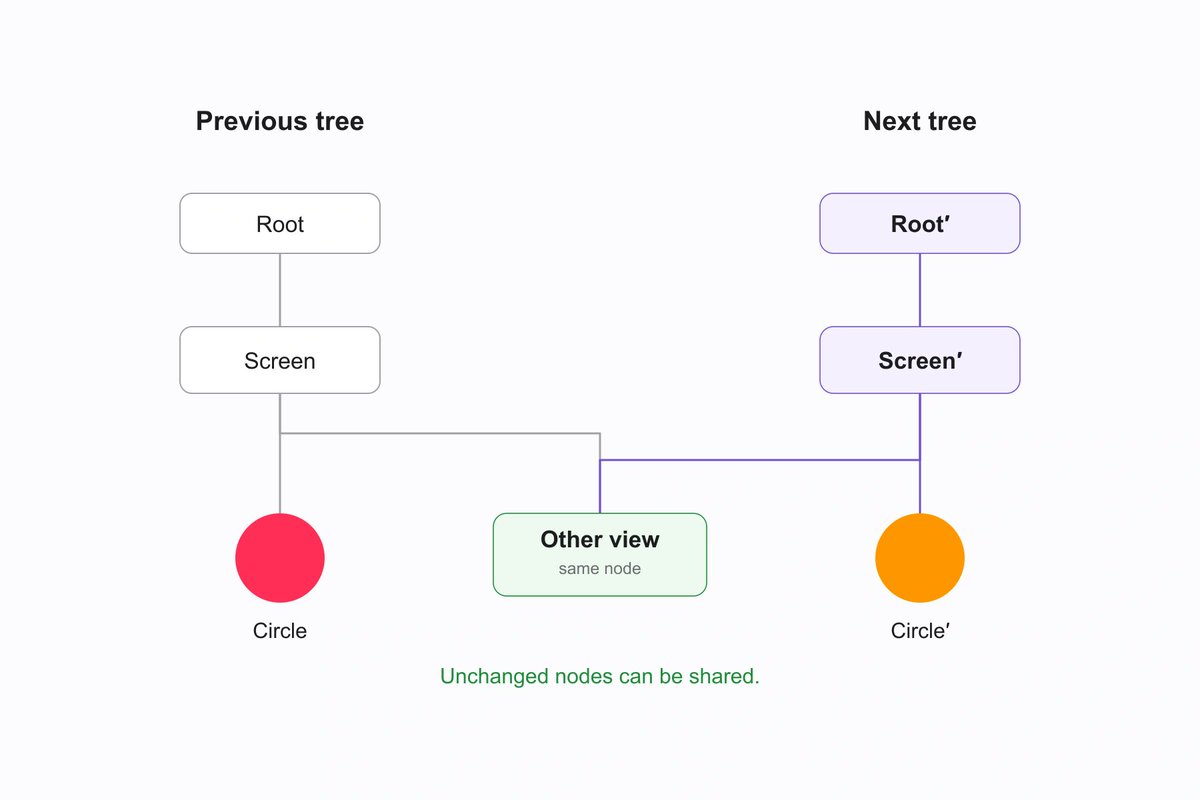
The extra Other view branch illustrates structural sharing; it isn't part of our minimal example. The highlighted path changes, while the unrelated branch can be shared.
These are concrete ways the renderer avoids unnecessary work. They don't make every application automatically fast: expensive JavaScript, large images, and excessive updates still need attention in the app you build.
Fast Refresh keeps development moving
While developing, you can save a style change and see it appear without rebuilding the native application. Fast Refresh updates the relevant JavaScript and re-renders the affected components.
Compatible edits to function components can preserve state. Other edits can reset state or trigger a full reload, depending on what changed and how the modules are used. Native-code changes still need a native build. The Fast Refresh guide covers those boundaries.
In our example, editing the circle's size is a JavaScript change. Adding a native capability the installed development build doesn't contain is a different kind of change.
Updates have a native boundary
That distinction also matters after release. A configured update system such as EAS Update can deliver a compatible JavaScript and asset update to an installed app. The native code already in that installation has to support the new code. Expo uses runtime versions to match compatible updates and builds. Expo's runtime-version documentation explains how this works.
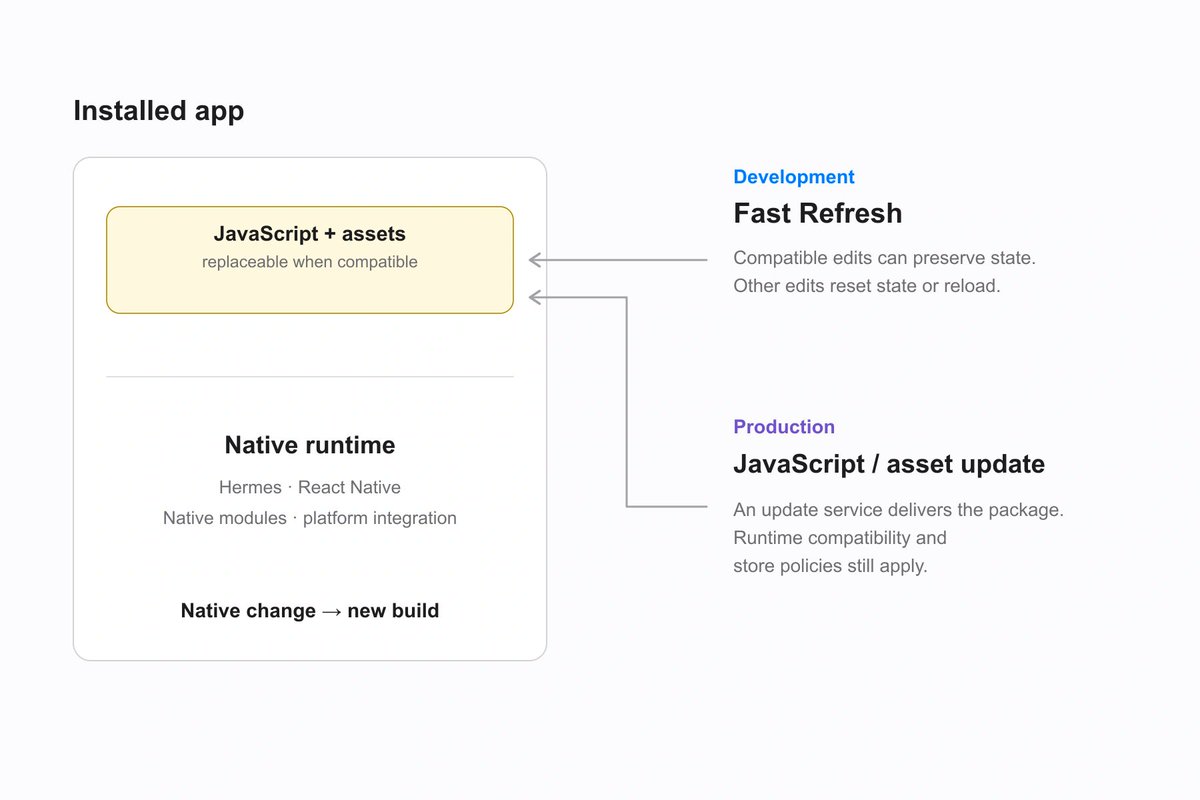
Fast Refresh is a development tool. Production updates use a configured delivery system and must match the installed native runtime. Native-code changes require a new build.
A fix to the circle's JavaScript handler may fit within the existing runtime. Adding a native library that the installed app doesn't include requires a new native build. Production updates still follow the platforms' app-store guidelines, including the rules for changes to app behavior.
The practical benefit of understanding the architecture is knowing where a change belongs. You can distinguish a bundle problem from a layout problem, a React render from a native-view update, and a JavaScript edit from a change that needs a new binary.
Follow for more pro tips :)
– Beto