Omarchy 101: from zero to power user
文章目录
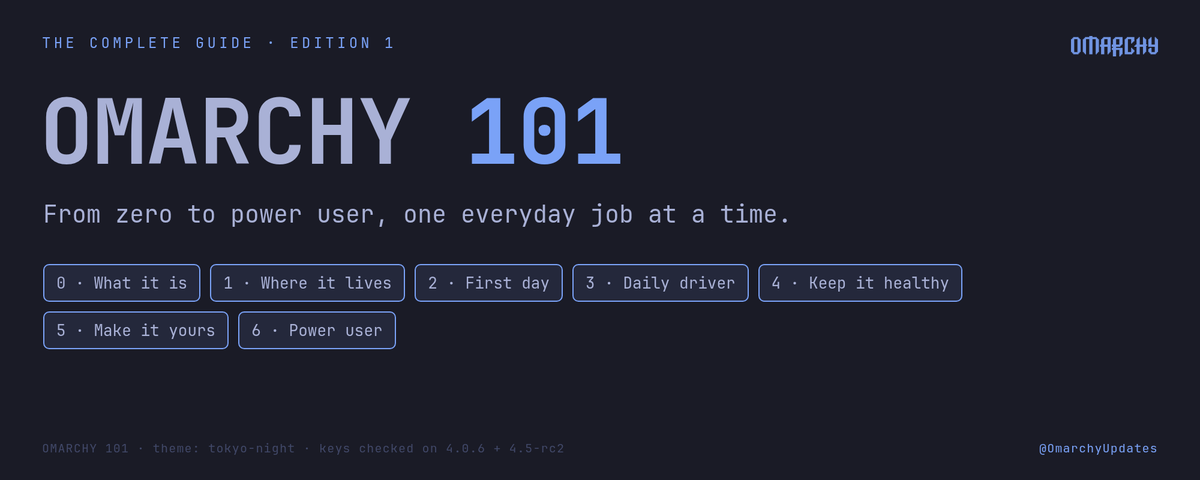
The complete, plain-English guide to using Omarchy every day. Seven levels, from "what is this?" to building your own plugins.
Edition 2 · sources checked November 2, 2026 · refreshed every 3 days · by @OmarchyUpdates (community account, not affiliated with Omarchy)
What's new this edition
-
4.5.0-rc3 is out (November 1). Every key and command below was rechecked against it, and no shortcuts moved since rc2 (Which version).
-
Apple Silicon: the 4.5 RC now has an official Mac installer for M1, M2, M3 and Neo Macs, and those Macs can pick the RC update channel (Level 1, Level 4).
-
[4.5] sudo now asks for your password once per 10 minutes instead of for every command (Level 4).
-
[4.5] Unplugging a monitor no longer crashes Hyprland, and scaling is saved per monitor (Level 5).
-
[4.5] Fullscreen windows keep HDR displays in SDR, so video no longer looks washed out (a fix, no steps needed).
-
Fixed from edition 1: the 4.5 notification keys and the screenshot key's version tag (Level 3).
How to use this guide
Start at the level that fits you, and skip what you already know:
-
Level 0, What Omarchy is: you've heard the name.
-
Level 1, Where it can live: you're deciding whether to install it.
-
Level 2, Your first day: you just logged in.
-
Level 3, Daily driver: you want everyday jobs to be quick.
-
Level 4, Keep it healthy: updates, restore points and fixes.
-
Level 5, Make it yours: looks, keys and menus.
-
Level 6, Power user: plugins, automation, AI agents, gaming and Windows apps.
Each level matches a numbered post in our Omarchy 101 series, so you can follow along one job at a time.
"Super" is the Windows key. Every key below was checked in Omarchy's own source code.
Which version are you on?
-
Stable: 4.0.6
-
Preview: 4.5.0-rc3 (published November 1, 2026). The official manual already describes 4.5.
-
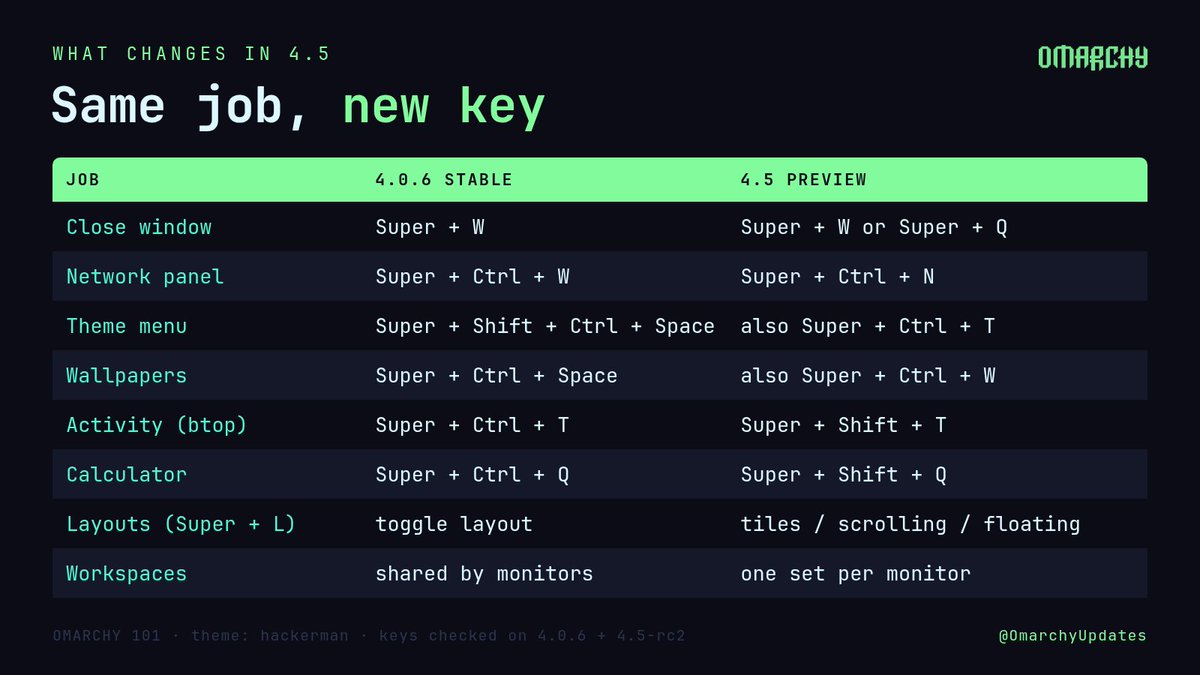
Where a key differs, it's tagged [4.0.6] or [4.5]. Anything untagged works the same in both.
Source: https://github.com/omacom/omarchy/releases · https://github.com/omacom/omarchy/releases/tag/v4.5.0-rc3
Level 0: What Omarchy is
Omarchy turns a computer into a fast, good-looking, keyboard-first desktop. It was built by DHH, it's free, and it's open source (MIT licence). The manual calls it "an omakase Linux distribution": the apps, keys and looks are chosen for you, so you can work as soon as it boots.
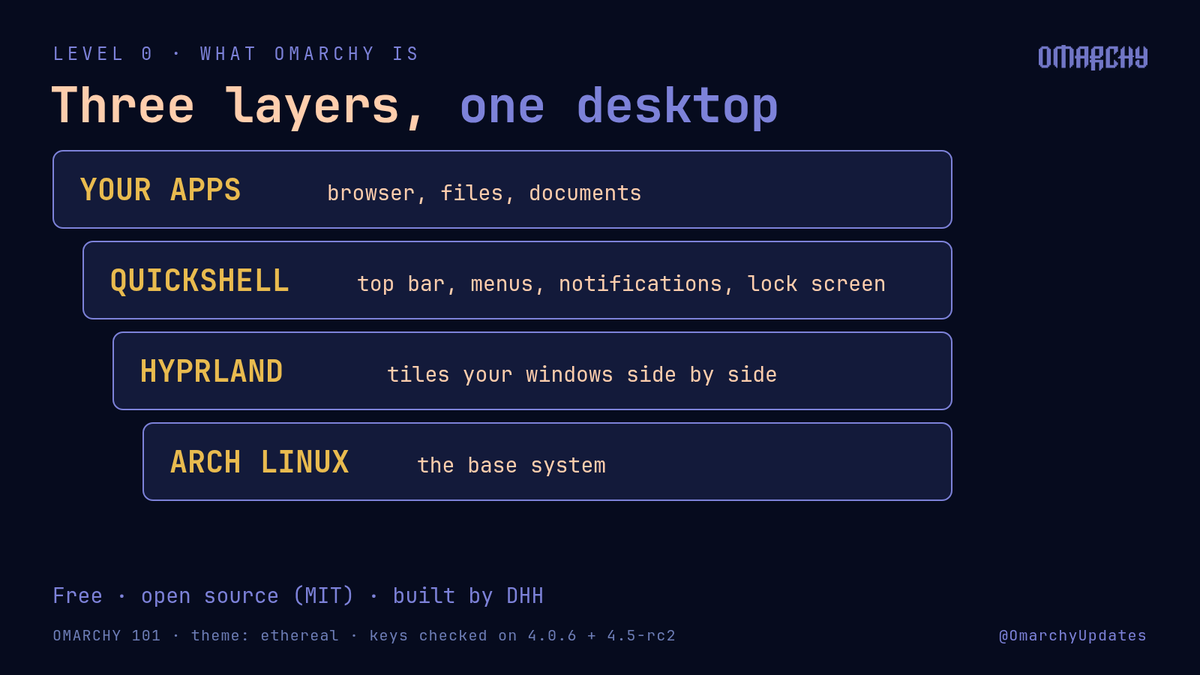
It's made of three layers:
-
Arch Linux: the base system.
-
Hyprland: the window manager. It places windows side by side automatically, like tiles, so nothing hides behind anything else.
-
Quickshell: draws the top bar, menus, notifications and lock screen.
On top of that you use normal apps: a browser, a file manager, documents. Two words you'll keep seeing:
-
Terminal: a window where you type commands instead of clicking.
-
Package: an app or tool you install.
Source: https://omarchy.org/manual/
Level 1: Where Omarchy can live
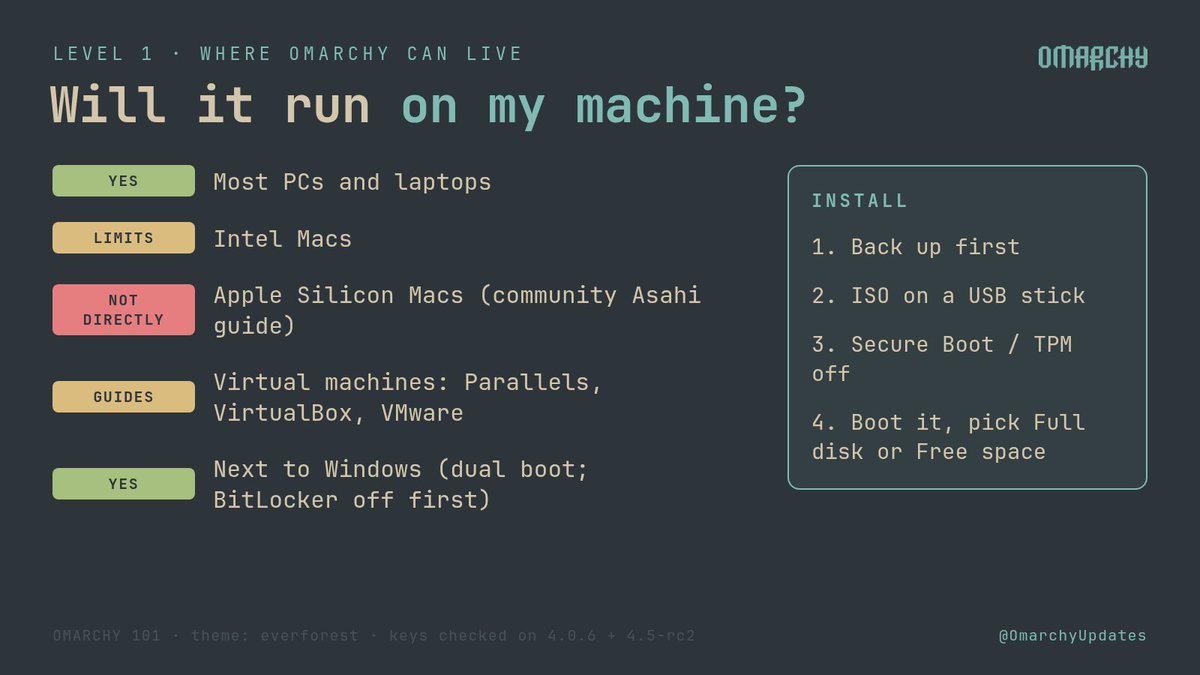
Will it run on my machine?
-
Most PCs and laptops: yes. That's what the installer is built for.
-
Intel Macs: supported, with known limitations.
-
Apple Silicon (M1, M2, M3, Neo) Macs: [4.5] the release candidate ships an official Mac installer, so treat it as a preview and back up first. [4.0.6] Not directly; a community guide uses Asahi Linux, and it takes effort.
-
A virtual machine: community guides exist for Parallels, VirtualBox and VMware. The manual warns that VirtualBox performance "probably won't be great".
-
Next to Windows: yes, as a dual boot, where you choose the system each time you start. Turn off BitLocker in Windows first.
Install it
-
Back up anything you care about. The full-disk option wipes the drive.
-
Put the Omarchy ISO (the installer file) on a USB stick. Use balenaEtcher on Mac or Windows, or caligula on Linux.
-
In the computer's startup settings (BIOS), turn off Secure Boot and/or TPM.
-
Boot from the stick and answer the questions. Choose Full disk, or Free space for a dual boot.
Your disk is encrypted by default. During install, use a wired keyboard or one with a 2.4 GHz USB dongle.
First login: check 5 things
Before you change anything, check that:
-
Wi-Fi connects (or Ethernet, as soon as you plug it in).
-
Sound plays.
-
The keyboard types correctly.
-
Screen brightness changes.
-
The laptop sleeps and wakes once.
Write down anything that fails. It's easier to fix now than after you've added extras.
Source: https://omarchy.org/manual/omarchy-on/ · https://omarchy.org/manual/mac-support/ · https://omarchy.org/manual/getting-started/ · https://omarchy.org/manual/dual-boot-install/
Level 2: Your first day
The keys you need
-
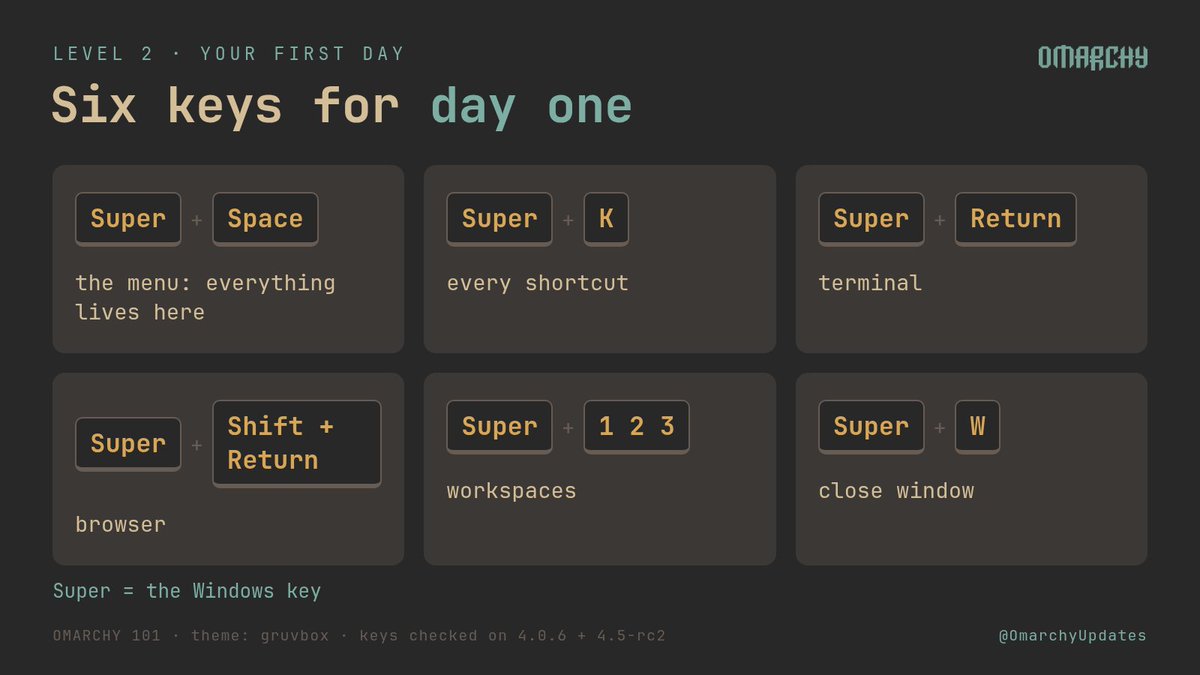
Super + Space: the Omarchy menu. Almost everything lives here, so start typing to search.
-
Super + K: every shortcut, in one list.
-
Super + Return: a terminal.
-
Super + Shift + Return: the browser.
-
Super + W: close the window ([4.5] Super + Q works too).
-
Super + Ctrl + L: lock the screen.
If you remember one, make it Super + Space.
Windows and workspaces
Workspaces are separate desktops. Give each one a job: browser on 1, work on 2, chat on 3.
-
Super + 1, 2, 3…: go to that workspace.
-
Super + Shift + 1, 2, 3…: move the current window there.
-
Super + Arrow keys: move between windows.
-
Super + J: switch two windows between side-by-side and stacked.
-
Super + L: change the layout ([4.5] cycles tiles, scrolling and floating).
-
[4.5] Each monitor gets its own workspaces.
Apps and files
-
Super + Space, then type an app's name and press Return.
-
Super + Alt + Space: a grid of all your apps.
-
Super + Shift + F: the file manager. Super + Alt + Shift + F opens it in your terminal's folder.
-
New apps: Super + Space > Install > Package, then type the name. In a terminal, it's
omarchy pkg add <name>. -
Install > AUR opens the community catalogue. Nobody official checks it, so stick to well-known apps.
Source: https://omarchy.org/manual/hotkeys/ · https://omarchy.org/manual/navigation/ · https://omarchy.org/manual/other-packages/
Level 3: Daily driver
Capture and copy
-
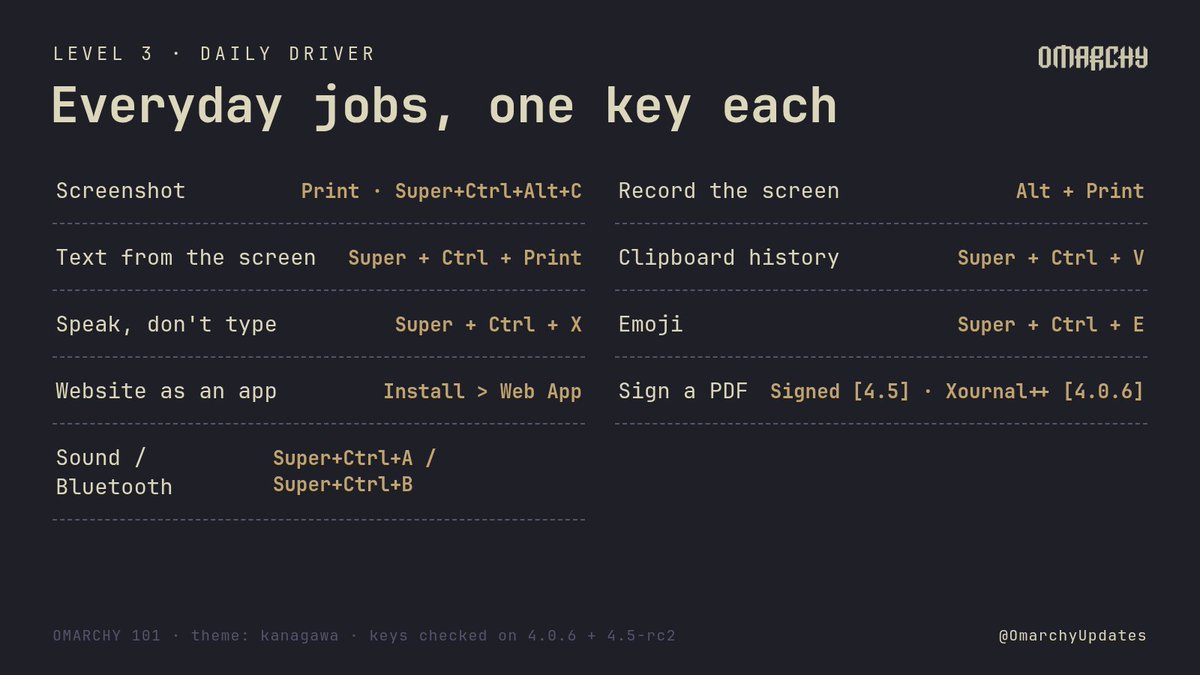
Print Screen: screenshot. No Print key? [4.5] Super + Ctrl + Alt + C.
-
Alt + Print Screen: start a screen recording, and press it again to stop.
-
Super + Ctrl + C: the capture menu with every option.
-
Super + Ctrl + Print Screen: copy the text out of any part of the screen.
-
Super + Print Screen: colour picker.
-
Super + C / X / V: copy, cut and paste in almost every app, terminals included (cut doesn't work in terminals).
-
Super + Ctrl + V: clipboard history, text and images. Type to search it, then press Return.
Talk, emoji and notifications
-
Super + Ctrl + X: dictation, so you can speak instead of typing. Install it first from Install > AI > Dictation.
-
Super + Ctrl + E: emoji picker.
-
Super + comma: [4.0.6] dismiss the latest notification. [4.5] act on the newest card (dismiss it, open it, or press its one button); Super + Alt + comma dismisses it. Super + Shift + comma dismisses all of them.
-
[4.5] Super + Ctrl + comma: act on notifications with the keyboard (numbers press buttons, Enter opens).
Websites as apps
-
Log in to the site in your browser first.
-
Super + Space > Install > Web App.
-
Type a name and the web address.
-
Launch it from Super + Space like any app. Remove it with Remove > Web App.
PDFs
-
Forms: open them in the Document Viewer and type into the fields.
-
Sign or write on any PDF: [4.5] open it in Signed. Press T for text, D for today's date, Shift + S to add your signature, and Ctrl + S to save a signed copy. The original stays untouched. [4.0.6] Use Xournal++.
Wi-Fi, Bluetooth, sound and screens
Every top-bar icon opens a panel, and each panel has a key:
-
Audio: Super + Ctrl + A
-
Network: Super + Ctrl + W [4.0.6] / Super + Ctrl + N [4.5]
-
Bluetooth: Super + Ctrl + B
-
Display: Super + Ctrl + D
-
Power: Super + Ctrl + P
Two extras: Setup > Network > QR Code lets a guest's phone join your Wi-Fi, and Super + Ctrl + Alt + Delete mirrors your laptop onto a projector.
Source: https://omarchy.org/manual/screenshots-recording/ · https://omarchy.org/manual/unified-clipboard-history/ · https://omarchy.org/manual/text-extraction-dictation/ · https://omarchy.org/manual/notices/ · https://omarchy.org/manual/web-apps/ · https://omarchy.org/manual/filling-out-pdfs/ · https://omarchy.org/manual/networking/
Level 4: Keep it healthy
Update safely
-
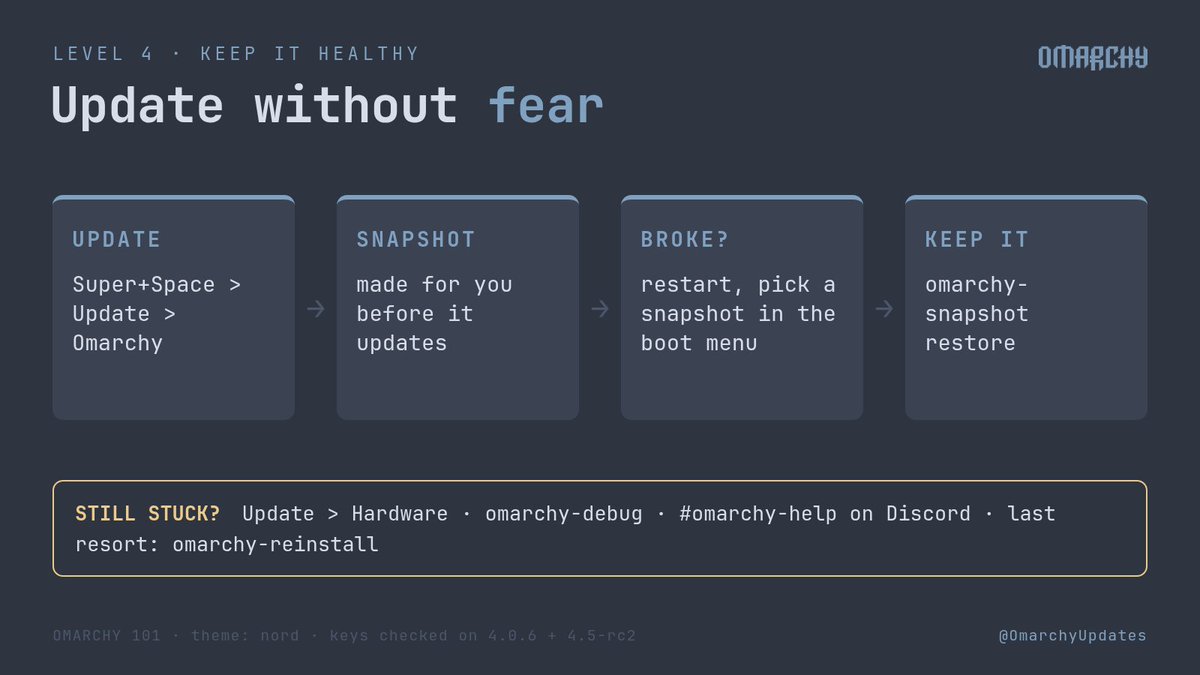
Super + Space > Update > Omarchy, or click the arrow that appears next to the clock.
-
Save your work first, and skim the release notes.
-
Omarchy takes a snapshot, a restore point, before updating.
-
There are four channels: stable, RC, edge and dev. Stay on stable unless you want to test things. [4.5] Apple Silicon Macs can pick RC too.
-
[4.5] sudo asks for your password once, then not again for 10 minutes.
Undo a bad update
-
Restart and pick a dated snapshot in the boot menu (Limine). [4.5] The menu shows for about a second, so keep tapping any key while starting.
-
Once it boots, run
omarchy-snapshot restoreto keep it. -
Make your own restore point any time with
omarchy-snapshot create.
A snapshot restores the system, not your files in /home. Back those up separately.
When something breaks
-
Wi-Fi, Bluetooth, sound or trackpad stopped: Super + Space > Update > Hardware, and restart just that one.
-
No sound after plugging in a monitor: pick the right output in the audio panel (Super + Ctrl + A).
-
Still stuck: run
omarchy-debugand share the result in #omarchy-help on the Omarchy Discord. -
Last resort:
omarchy-reinstallputs Omarchy's default configs and packages back.
Lock it down
-
Fingerprint: Setup > Security > Fingerprint unlocks the lock screen and approves admin prompts.
-
Security key (FIDO2): Setup > Security > Fido2, for admin prompts.
Source: https://omarchy.org/manual/updates/ · https://omarchy.org/manual/system-snapshots/ · https://omarchy.org/manual/troubleshooting/ · https://omarchy.org/manual/hardware-authentication/
Level 5: Make it yours
Looks
-
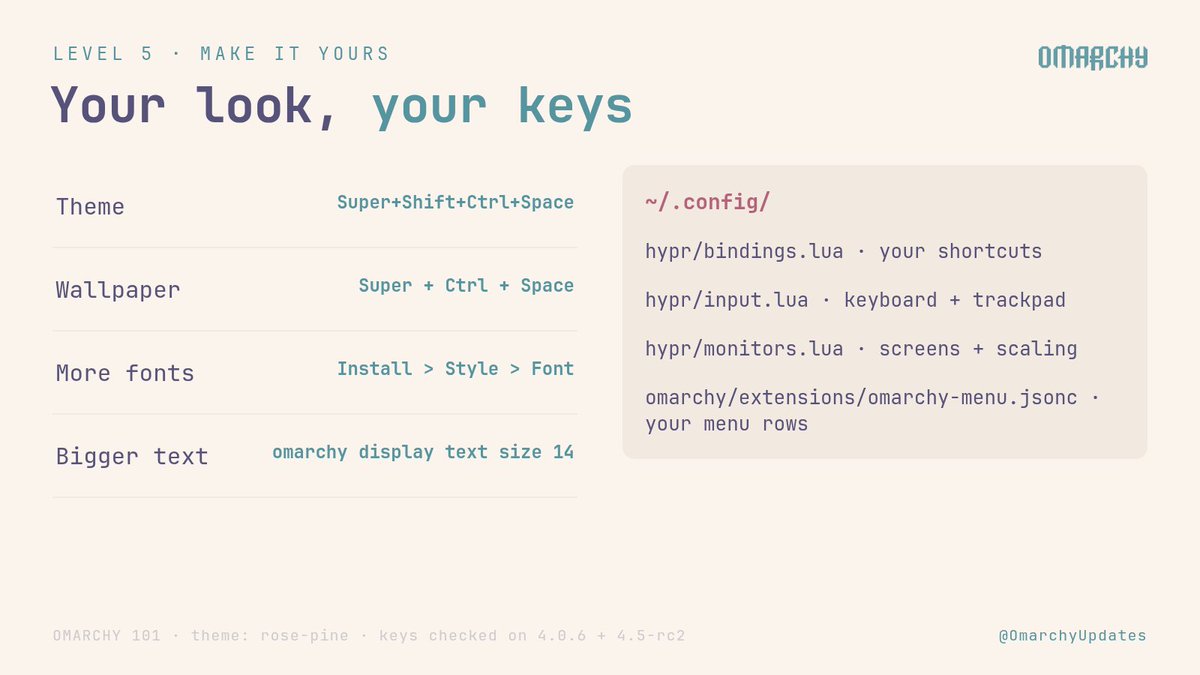
Themes recolour everything at once (terminal, browser, bar, menus, lock screen): Super + Shift + Ctrl + Space. [4.5] Super + Ctrl + T also works, and themes live under Appearance > Theme.
-
Wallpapers: Super + Ctrl + Space. [4.5] Super + Ctrl + W also works. Install > Style > Background opens the folder for your theme so you can add your own. Videos (mp4, m4v, mov) work too.
-
Fonts: Install > Style > Font adds more, such as Cascadia Mono, Fira Code and Iosevka.
-
Make all text bigger or smaller:
omarchy display text size 14(any size from 9 to 20;resetgoes back).
Your own keys, input and screens
Your settings are text files in ~/.config, a hidden folder in your home folder:
-
~/.config/hypr/bindings.lua: your shortcuts
-
~/.config/hypr/input.lua: keyboard repeat and trackpad scrolling (also Setup > Input)
-
~/.config/hypr/monitors.lua: screens and scaling ([4.5] scaling one monitor no longer rescales the others)
Don't edit Omarchy's own files in /usr/share/omarchy, because updates replace them. Copy a file before you change it.
Your own menu rows
Add rows such as "Personal > Notes" to the Super + Space menu in ~/.config/omarchy/extensions/omarchy-menu.jsonc. A dotted name like personal.notes puts Notes under Personal, and the action can be any command.
Source: https://omarchy.org/manual/themes/ · https://omarchy.org/manual/backgrounds/ · https://omarchy.org/manual/fonts/ · https://omarchy.org/manual/dotfiles/ · https://omarchy.org/manual/keyboard-mouse-trackpad/
Level 6: Power user
Plugins
-
Manage them in Setup > Plugins, or with
omarchy plugin list,enableanddisable. -
Build your own from a built-in one:
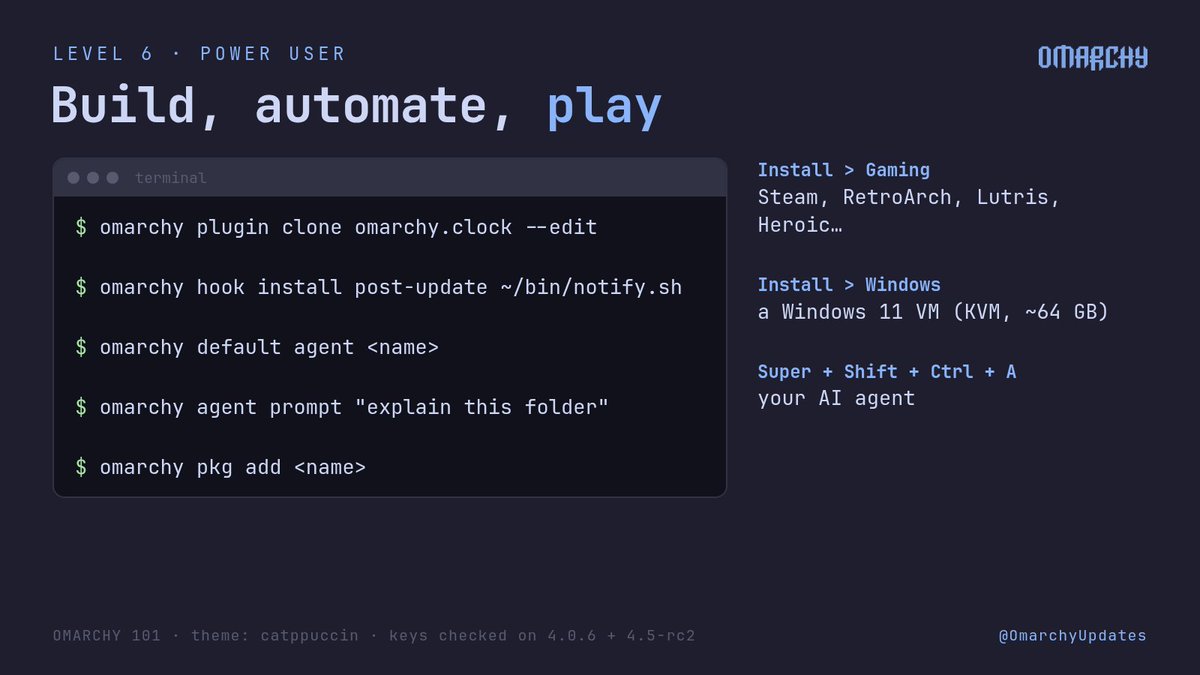
omarchy plugin clone omarchy.clock --edit, thenomarchy plugin validate. -
Plugins run with your full user permissions and no sandbox. Install only ones you trust, one at a time.
-
Browse community plugins at plugins.omarchy.org.
Your own theme
Copy a theme from /usr/share/omarchy/themes to ~/.config/omarchy/themes/<name> and edit colors.toml. That single file colours the terminal, Hyprland, Neovim and the whole shell. Prefer clicking? Aether builds a theme visually.
Automations
Hooks are scripts that run when something happens: omarchy hook install <event> <script>. Events include theme-set, font-set, post-boot, post-update and battery-low.
AI agents
-
Pick your default agent: Setup > Defaults > Agent (Claude, Codex, Hermes and others), or
omarchy default agent <name>. -
Super + Shift + Ctrl + A opens it in its own terminal.
omarchy agent prompt "…"starts it with a task. -
When an app crashes, click the notification to hand the crash to your agent.
-
Agents opened this way run without asking before each step, so start with small jobs.
Games and Windows apps
-
Install > Gaming covers Steam, RetroArch, Lutris, Heroic, Minecraft, GeForce NOW, Xbox Cloud Gaming and Moonlight.
-
Install > Windows sets up a Windows 11 virtual machine. It needs KVM (virtualization) turned on and about 64 GB of disk, and it has no GPU passthrough, so it isn't for gaming or video editing.
Source: https://omarchy.org/manual/shell-plugins/ · https://omarchy.org/manual/making-your-own-theme/ · https://omarchy.org/manual/ai/ · https://omarchy.org/manual/gaming/ · https://omarchy.org/manual/windows-vm/
What people built on Omarchy
Community projects, credited to their makers. They aren't part of stock Omarchy:
-
Time Machine by @jankeesvw: scheduled backups, with a snapshot browser in the bar. https://github.com/jankeesvw/omarchy-time-machine
-
Meeting Recorder by @jankeesvw: records a call and writes a transcript. https://github.com/jankeesvw/omarchy-meeting-recorder
-
Flux by @iamdothash: connect your phone for files, clipboard, notifications and more. https://github.com/bjarneo/flux
-
Panorama by İlkay Dinç: every workspace in one wide view. https://github.com/ilkaydnc/omarchy-panorama
-
Omakade by @btsouth: a game library that follows your theme. https://github.com/btsouth/omakade
-
Omarchy Mobile by @derekmross: Omarchy on a phone. https://github.com/derekross/omarchy-mobile
-
Gliff by @dhh: remote desktops over SSH. https://github.com/omacom/gliff
-
The PS4 port by @meerzulee: Omarchy on real PS4 hardware. https://x.com/meerzulee/status/2091577507393004018
A–Z index
-
A: Aether (theme maker) · AI agents (L6) · AUR (L2)
-
B: Backgrounds (L5) · Bluetooth (L3)
-
C: Capture menu, Super + Ctrl + C (L3) · Clipboard history, Super + Ctrl + V (L3)
-
D: Dictation, Super + Ctrl + X (L3) · Dual boot (L1)
-
E: Emoji, Super + Ctrl + E (L3) · Extensions, your menu rows (L5)
-
F: Fingerprint (L4) · Fonts (L5) · File manager, Super + Shift + F (L2)
-
G: Gaming (L6)
-
H: Hooks (L6) · Hyprland (L0)
-
K: Every shortcut, Super + K (L2)
-
L: Limine boot menu (L4)
-
M: Mac / Apple Silicon (M1, M2, M3, Neo), a preview installer in the 4.5 RC, back up first (L1, L4) · Menu, Super + Space (L2) · Monitors (L5)
-
N: Notifications (L3)
-
O: omarchy-debug · omarchy-reinstall (L4)
-
P: Packages (L2) · PDFs (L3) · Plugins (L6)
-
S: Snapshots (L4) · Super key (L2)
-
T: Themes (L5) · Text from the screen (L3)
-
U: Update channels (L4)
-
W: Web apps (L3) · Windows VM (L6) · Workspaces (L2)
Sources
-
The official Omarchy manual: https://omarchy.org/manual/
-
Releases and release notes: https://github.com/omacom/omarchy/releases
-
Keys checked in the 4.0.6 and 4.5.0-rc3 source: https://github.com/omacom/omarchy
-
Plugin directory: https://plugins.omarchy.org
Spotted something out of date? Reply and we'll fix it in the next edition.