How to make a cartoon explainer video with Claude
文章目录
部分视频或图片暂未收录,已在正文保留提示;需要时可查看原文。查看原文 ↗
I made a 78-second cartoon video with one prompt and four approvals.
Claude wrote the script, recorded the voice, drew three cartoon characters into 28 shots and cut it all together with captions. My whole job was saying yes or no at each stage.
I never opened an editing app. I never read a line of the code Claude wrote.
This guide gives you the full setup, the master prompt and a copy-paste prompt for every step. You need zero editing skills.
What's inside:
→ What you're making, and the 4 things you need
→ The master prompt, ready to copy
→ The 4 steps from script to finished video, with a prompt for each
→ 5 mistakes that break these videos (with the fix for each)
→ When to skip this and make a different kind of video
→ A quick-start version for your first video
What You're Making
A vertical explainer video, 1080 by 1920 pixels, the shape of a phone screen. It runs 75 to 90 seconds and teaches one idea.
Your own cartoon characters act the story out with faces and gestures. They never talk. A narrator carries all the words, and captions run along the bottom.
My test cast is three cartoon beans. Mo is the hype friend who tries every new tool. Pax is the skeptic who wants proof. Vee is the reviewer who explains the fix.
Under the hood, Claude builds the whole video in code. It draws your characters in code too, so they look identical in every shot. You never see any of it. You read a script, listen to a voice track and look at frames.
At the end you get three files.
-
The video, as an MP4
-
A captions file (SRT) that you upload next to the video
-
A page with the storyboard, the cast sheet and the sound plan
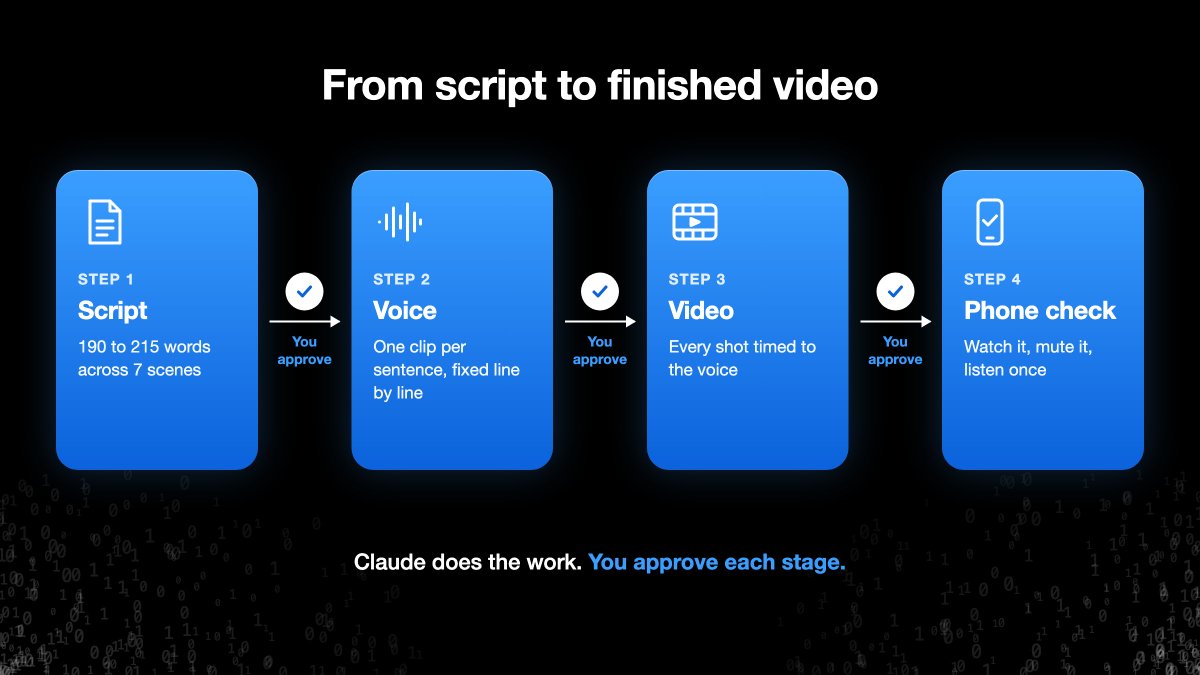
The order never changes. Script, then voice, then video. A change costs you one message at the script stage and a full rebuild at the video stage. So you approve each stage before Claude starts the next.
What You Need
-
Claude, in a chat that can run code. My test videos used Claude Opus 5.5.
-
A model sheet. One image of your characters in four expressions (neutral, shocked, laughing, crying). Claude copies it in every shot.
-
A reference. An infographic, an article or your own notes on the topic.
-
The master prompt. One long prompt that holds every rule for the video. Copy it from the block below.
Paste the whole block into a new Claude chat. To use your own characters, rewrite the visual_identity and cast sections and attach your own model sheet. Leave everything else as it is. You can skip the voiceover and render sections, because those are setup instructions for Claude.
<title>
Opus 5.5 Motion Design Prompting Guide: Vertical Dynamic Cut, Bean Buddies
</title>

<purpose>
Create a complete 75-90 second vertical educational animation about [TOPIC].
Teach [CORE IDEA] through one clear visual story, not a list of facts.
Make the difficult idea intuitive for [AUDIENCE] without losing accuracy.
Design for mobile viewing: fast pacing, one idea per shot, readable at phone size.
The Bean Buddies act the story out. A narrator carries all the words.
</purpose>

<source_material>
[Optional. Attach or describe the reference. List the components, steps, or claims
the video must cover.]
Teach only what the source supports. Do not add components or facts it doesn't contain.
Leave out claims the source can't back up (exact multipliers, guaranteed results).
If the topic involves current products, versions, or numbers, verify them before writing.
Give each major component of the source its own location in the world.
</source_material>

<visual_identity>
The Bean Buddies world: a clean, soft, clay-toy look drawn as flat vector shapes.
Palette:
- Ivory #FBF5EA for bean bodies, cards, and nodes
- Clay #D97757 for action, arrows, and highlights
- Slate #4A4744 for commands, evaluators, and dark surfaces
- Sage #A7B99E for context, success, and calm moments
- Mustard #E8B54E for glows, tokens, and attention
- Warm-brown outline #3D2B24 on every shape
- Cream #F5EEE3 as the base background, blush #F4C0B4 for cheeks
Every shape has a 6 px warm-brown outline, rounded corners, and a soft offset shadow.
No sharp corners and no black outlines.
Each location has its own flat background color from the palette, a faint dot grid,
and a floor band with a soft ground shadow under each character.
Diagrams are chunky rounded nodes, clay arrows with outlined heads,
and pill-shaped chips for commands and labels.
Characters bob gently when idle, and squash and bounce when they walk or land.
Never show real product logos or real app icons. Invent simple icons instead.
</visual_identity>

<cast>
Match the attached model sheet exactly. Every bean has a soft ivory rounded bean body
with a beige shading strip on its right side, pink blush cheeks, tiny rounded arms,
and two small oval feet.

MO, the hype friend. Clay hoodie over the lower body with drawstrings and a front pocket,
clay headphones over the top of the head, big glossy eyes with highlights,
open happy mouth, slate feet. Loves every new thing, acts first and thinks later.

PAX, the skeptic. Slate ribbed beanie with a lighter slate band, heavy flat brows,
half-lidded eyes, small smirk, sage scarf, arms crossed by default, slate feet.
Wants proof. His reactions mark the problem.

VEE, the reviewer. Sage bucket hat, dark round sunglasses, open smile,
clay scarf with a hanging tail, holds a slate microphone, clay feet.
Explains and checks. He guides the viewer through the mechanism.

[ROLE MAPPING. Optional. Say which character carries which part of this story.]

Expressions: neutral, shocked (hands to cheeks, mouth open, and Vee's sunglasses
jump up onto his hat brim), laughing (eyes closed in arcs, wide open mouth),
and crying (tears on the outer cheeks, blush removed).
Change expression only on a cut or a clear beat, never mid-word.
The characters act and react. They never speak. No speech bubbles with dialogue.
</cast>

<format>
Aspect ratio 9:16, 1080x1920, 24 fps, with burned-in captions.
Safe zones: keep all key action and text inside the central area.
Leave the top 250 px and bottom 420 px free of essential content
(platform UI overlays sit there).
Compose in a single vertical column. Stack information top to bottom,
never side by side. Use vertical motion and depth (push-ins, drops, rises)
as the main movement axes.
Character framing: one character per shot by default. Use close-ups on faces
for reactions. When two characters share a shot, stack them in depth
(one in front, one behind) or put one character in the lower third under a diagram.
Show all three side by side only in the final shot.
Labels: minimum 56 px equivalent, maximum 4 words, set in pill chips.
Captions: centered, in the lower-middle area just above the bottom safe zone,
2 lines maximum.
</format>

<process>
Reduce the subject to one central cause-and-effect relationship.
Structure the story as seven scenes: hook, familiar world, disruption,
mechanism, discovery, consequence, and recap. Every scene must add new understanding.

Break every scene into 3-5 distinct shots.
Target a new shot every 2-4 seconds, roughly 25-35 shots in total.
A shot is a new composition: a new background, a new camera distance,
or a new location. Moving elements inside the same frame does not count.
Cut to a character reaction at least once per scene.

Shot rules:
- Every shot starts from a clean composition. Do not keep previous
  elements on screen unless one is deliberately carried forward.
- At most 3 primary elements on screen at any time. A character counts as one.
- When an element has done its job, it exits. Nothing accumulates.
- Vary camera distance across consecutive shots (wide, medium, close-up, macro).
- Only one hero object carries across each transition. Everything else resets.

Transitions must change the frame while preserving meaning. Use:
match cuts (a shape in one shot becomes a similar shape in the next),
zoom-throughs (push into an object to reveal a new world inside it),
whip pans and vertical drops or rises to a new location,
a character walking, hopping, or tumbling out of one frame and into the next,
and cuts on a change of expression.
Do not morph the whole frame in place. Do not add new elements
to an existing frame as a substitute for a new shot.

Let the most important transformation per scene hold for 2-3 seconds
so it can breathe. Everything else moves briskly.
Write warm, precise narration. Use concrete language before technical terms.
Do not duplicate narration in on-screen text. Keep labels brief and readable.
</process>

<workflow>
Work in three stages. Stop at the end of each of the first two stages
and wait for my approval. Do not start the next stage until I approve.

STAGE 1 · SCRIPT
Deliver the script as a .md file containing:
- A header with format, style, cast roles, core idea, audience, source, pacing,
  and total word count.
- For every scene: SCENE [N] - [START-END], a word count, the learning purpose,
  and the final voiceover lines.
- For every shot within it, a table row with shot number, framing,
  what is on screen (max 3 primary elements, with each character's expression),
  and the cut into the next shot.
- A short sound plan and a list of voiceover risks (hard words, fast lists).
Target 190-215 words total so the read lands inside 75-90 seconds.
Timestamps are estimates until the voiceover is recorded.
Then stop and wait for approval.

STAGE 2 · VOICEOVER
Record the approved script exactly as written (see <voiceover>).
Report the total length and the words or lines most likely to sound wrong.
If the length falls outside 75-90 seconds, adjust pauses first, never words.
Then stop and wait for approval.
When I flag a problem, re-record only the flagged sentence,
slow only that line if needed, and leave the rest of the track untouched.

STAGE 3 · VIDEO
Time every shot to the approved recording's sentence timings.
Build and render the complete animation (see <render>).
Do not stop at a mood board, style frame, or partial prototype.
</workflow>

<voiceover>
Engine: Kokoro via the kokoro-onnx Python package.
1. Install: pip install kokoro-onnx soundfile --break-system-packages
2. Download the full-precision model files (the int8 model drops audio on some sentences):
   https://github.com/thewh1teagle/kokoro-onnx/releases/download/model-files-v1.0/kokoro-v1.0.onnx
   https://github.com/thewh1teagle/kokoro-onnx/releases/download/model-files-v1.0/voices-v1.0.bin
3. Voice am_michael, language en-us, sample rate 24000.
4. Render every sentence as its own clip. Trim leading and trailing silence,
   keeping 10 ms before and 100 ms after the speech. Join the clips in order.
5. Speed: base 0.95 per sentence times a global factor of 1.25.
   Never exceed 1.25 on normal lines.
6. Silence: 0.8 s lead-in, 0.36 s between sentences in a scene,
   0.56 s between scenes, 0.8 s tail.
7. Export: normalise to -16 LUFS with a -1.5 dB true peak, MP3 at 128 kbps, 44.1 kHz.

Script rules for clean TTS:
- Never use colons in voiceover lines.
- Spell out acronyms the way they should be spoken, or replace them with plain words.
- Give each item in a list its own sentence when the list has more than three items.
</voiceover>

<render>
Build the animation as one HTML canvas at 1080x1920.
Draw the characters in code from the model sheet so they stay identical in every shot.
Every element is a function of time computed from the recording's sentence timings,
so any frame can be drawn in any order.
Embed all fonts. No external assets.
Render frames headlessly with Playwright and Chromium, then encode with ffmpeg:
H.264 at 24 fps, AAC audio, the voiceover mixed over a ducked music bed and effects.
Normalise the final mix to -16 LUFS with a -1.5 dB true peak.
Burn in the captions and deliver a matching SRT file.
Review sampled frames against the storyboard and fix any shot that stacks elements,
breaks the safe zones, lets text overflow its box, or drifts off the model sheet
before delivering.
Deliver the MP4, the SRT, and a published page with the video, storyboard,
character sheet, transition map, sound plan, and production notes.
</render>

<voice>
Act as a senior motion director, educational storyteller, character animator,
and short-form editor.
Be playful in presentation, rigorous about clarity, and decisive in execution.
Cut like a short-form editor: keep momentum high and the frame always changing.
Let the characters' reactions carry the emotion so the narration can stay clear.
Preserve accuracy, character consistency, and the supplied identity.
</voice>
No characters yet? Paste this into Claude first. It designs a cast and draws the model sheet for you.
Design an original cast of [NUMBER] cartoon characters for short explainer
videos about [YOUR NICHE].
Give each one a name, a one-line personality and a role: one who plays the
viewer, one who doubts, one who explains.
Keep them simple enough to redraw the same way every time: one body shape,
three or four colors, and one signature item each.
No existing characters, mascots, logos or real people.
Then draw a model sheet showing every character in four expressions
(neutral, shocked, laughing, crying) on a plain background.
Keep those three roles. The viewer character makes the mistake, the doubter reacts to the problem, and the explainer shows the fix. Their faces carry the emotion, so the narrator can stay calm and clear.
Step 1: The Script
Open a new Claude chat and paste the master prompt. Attach your model sheet and your reference. Then fill in these five fields inside the prompt before you hit send.
[TOPIC] = [Your subject in a few words]

[CORE IDEA] = [The one cause-and-effect idea the viewer should walk away with]

[AUDIENCE] = [Who is watching and what they already know]

<source_material> = [Attach your infographic or article, or paste your notes.
List the parts the video must cover.]

[ROLE MAPPING] (optional) = [Which character carries which part of the story]
Short on time? Leave the fields open and attach the reference. Claude fills them in from it.
The core idea is the field that decides the video. Claude builds the whole story around one cause and effect. Mine was "AI saves time when it's a stack, not a pile of tools."
Claude sends back a script file and stops. The script always has seven scenes, in this order.
-
Hook. The viewer's problem, or a question they already have.
-
Familiar world. How things work for the viewer now.
-
Disruption. What breaks.
-
Mechanism. How the fix works.
-
Discovery. The "oh, that's it" moment.
-
Consequence. What changes for the viewer.
-
Recap. The idea in one breath.
Each scene comes with its narration and a shot table. The table lists the framing, what's on screen, each character's face and the cut into the next shot.
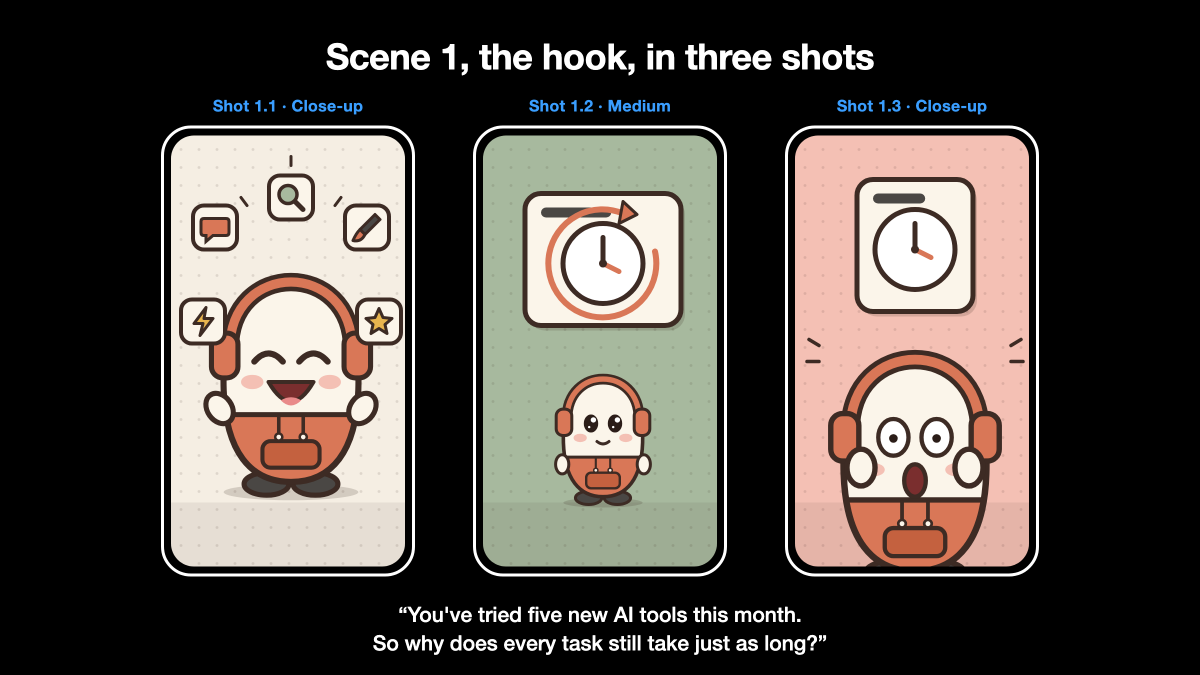
My script came back at 195 words, 7 scenes and 28 shots. Here's the hook.
You've tried five new AI tools this month. So why does every task still take just as long?
That line covers three shots in about 7 seconds. Mo laughs among five app tiles, then waits next to a task card while a clock hand sweeps a full circle, then his face falls when a second clock does the same.
Check these numbers before you approve.
-
190 to 215 words. That length lands inside 75 to 90 seconds once it's read aloud.
-
25 to 35 shots, with a new one every 2 to 4 seconds.
-
One 2 to 3 second hold per scene, on its most important moment.
Then check the claims. My infographic said "10x smarter". Claude cut that line, because nothing in the source proved it. The infographic also named real apps, so the video shows invented icons instead, like a chat bubble and a paintbrush.
Want a second pair of eyes? Paste this into the same chat.
Audit this script. Report pass or fail for each line, and quote every fail:
- 190-215 words in total
- Exactly 7 scenes: hook, familiar world, disruption, mechanism, discovery,
consequence, recap
- Opens on the viewer's problem or a question, not on a character
- Speaks to the viewer as "you"
- No character named or introduced in the voiceover
- No colons in voiceover lines
- Acronyms spelled out or replaced
- Lists of more than three items get one sentence per item
Fix only the fails and show me the changed lines.
Step 2: The Voice
Claude records the narration with Kokoro, a free open-source text-to-speech model. The master prompt already sets the voice, the speed and the pauses. You send one message.
Script approved. Record the voiceover exactly as written.
Report the total length, each sentence's speaking rate in syllables per second,
and the words most likely to sound wrong.
Claude records each sentence as its own clip, then joins the clips into one MP3. That keeps fixes cheap. When one line sounds off, Claude re-records that line and leaves the rest of the track alone.
Listen with the script open and check four things.
-
Length. It should land between 75 and 90 seconds.
-
Rushed lines. A normal pace is about 4.6 syllables per second. Claude's report flags any line well above that.
-
Lists. Each item should land as its own beat. My recap said "Prompts. Tools. Automation. Systems. Growth." as five separate sentences, so each word lines up with a block lighting up on screen.
-
Tricky words. Acronyms, numbers and technical terms go wrong first. In my video, "AI" had to come out as "A-I" and not "eye".
If the length is off, use this.
The read is [LENGTH] seconds. Bring it inside 75-90 seconds by widening
the pauses between sentences and between scenes. Do not change any words.
If one line sounds rushed, use this.
Re-record only this sentence: "[SENTENCE]"
Problem: [rushed / mispronounced word / dragging]
Record it alone at 1.1x and leave the rest of the track untouched.
In my video, "You don't build it in a day." came out too fast. Claude re-recorded that one sentence at 1.1x speed and kept the other 29.
When you approve, Claude writes the real timings back into the script. The video gets built on those timings, so this is the last cheap moment to fix the voice.
Step 3: The Video
Claude times every shot to a sentence in your recording, so the picture moves on when the voice does. Ask to see the characters before it builds a single shot.
Voiceover approved. Build the video.
Before any shots, show me a test sheet of every character in every expression,
next to the model sheet. Wait for my OK.
Then time every shot to the recorded sentences.
Keep a fix log with a before and after frame for every problem you correct.
Compare the test sheet with your model sheet. A wrong hat or a missing scarf takes one message to fix here. Later, you'd fix it in 30 shots.
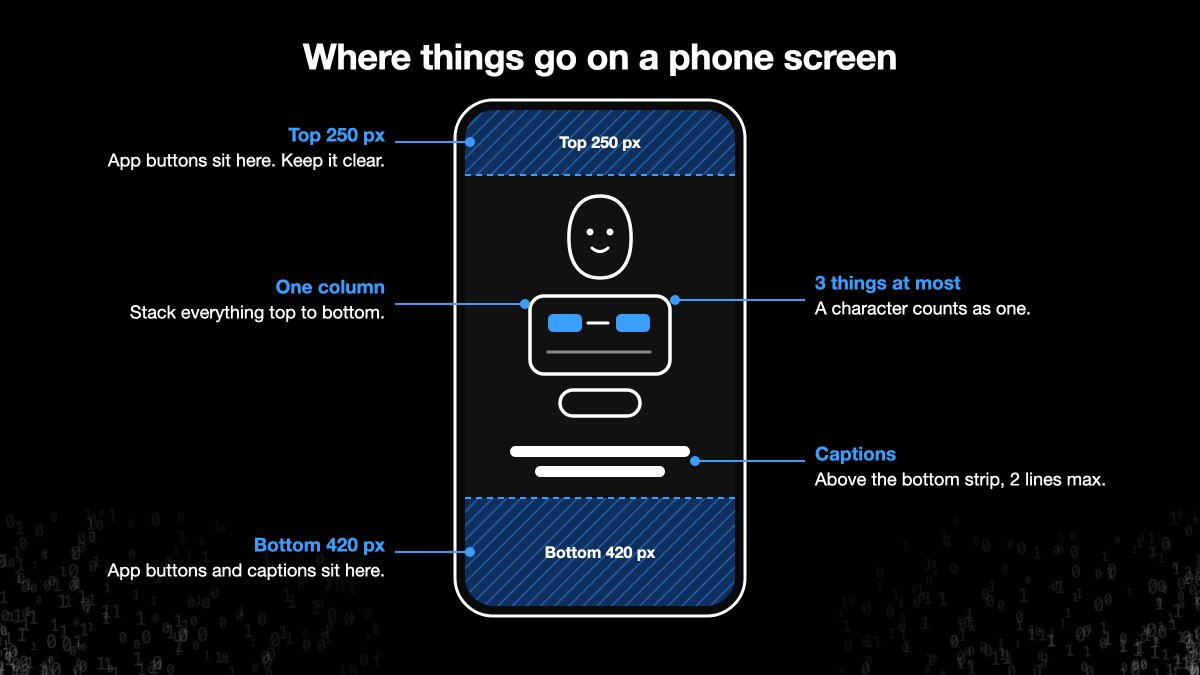
The master prompt holds five layout rules, and each one has a reason.
-
The top 250 and bottom 420 pixels stay clear. The app's buttons and captions cover those strips on a phone.
-
Everything stacks top to bottom. A phone screen is tall and narrow, so side-by-side items shrink until nobody can read them.
-
Each shot shows 3 main things at most. A character counts as one.
-
Each shot starts clean. When something has done its job, it leaves the frame.
-
One object carries across each cut. It ties the two shots together, and everything else resets.
My favorite cut from the test video ends shot 5.1 on Pax's raised eyebrow. In shot 5.2 the eyebrow becomes a cabinet handle. Your eye stays in the same spot while the whole scene changes.
Before the final render, ask for sample frames at phone size.
Show me sampled frames from every scene, including one mid-transition frame
per scene, at phone size. Mark the safe zones on each frame.
If one shot looks wrong, fix that shot alone.
Fix shot [NUMBER]. Problem: [what's wrong].
Leave every other shot as it is.
My final cut ran 77 seconds of voice plus a 1.5 second hold on the last frame, for 78.5 seconds in total.
Step 4: The Phone Check
This takes about a minute. Watch the video on your phone, watch it again with the sound off, then listen once with your eyes closed.
You can have Claude run the check first.
Before I publish, audit the finished video against this list and report
pass or fail for each line, with the shot number for every fail:

1. Nothing important in the top 250 px or bottom 420 px
2. No more than 3 main elements in any shot
3. No prop covering a character's face
4. Every character clearly visible against its background
5. No text overflowing its box, no label over 4 words
6. Characters match the model sheet in every shot
7. No character visible while moving between scenes
8. No real brand names or logos
9. Captions match the voice, 8 words or fewer per chunk, 2 lines at most
10. Total length inside 75-90 seconds

Show me a phone-sized frame for each fail.
With the sound off, the captions should carry the whole story in chunks of 8 words or fewer. With your eyes closed, the voice should sit above the music in every sentence.
When every line passes, post the MP4 and upload the SRT file as its captions.
5 Mistakes That Break These Videos
Each of these costs you a rebuild or a viewer who scrolls away. Each one takes under a minute to fix if you catch it early.
Mistake 1: Opening on a character.
My first script opened by introducing the three beans. A viewer scrolling past has never met Mo and has no reason to stop for him.
Fix: Open on the viewer's problem or a question they already have. Claude rewrote mine to "You've tried five new AI tools this month." If your hook feels flat, ask for options.
Write 5 opening lines for a video about [TOPIC].
Each one speaks to the viewer as "you" and names a problem they already feel
or asks a question they already have.
No character names, no colons, 20 words or fewer each.
Tell me which one you'd pick and why, in one sentence.
Mistake 2: Fixing the length with words.
My first read ran 69.8 seconds, under the 75-second floor. Adding a line would have meant a new recording and new timings for every shot after it.
Fix: Change the pauses and keep every word. Claude widened the gaps to 0.55 seconds between sentences and 1 second between scenes, and the read landed at 77 seconds. If the script runs long, cut words at Step 1, before anything gets recorded.
Mistake 3: Re-recording the whole track.
One rushed line tempts you to ask for a fresh take. A full redo moves the timing of every sentence, including the ones that were already right.
Fix: Re-record the flagged sentence alone, at 1.1x speed if it sounded rushed.
Mistake 4: Squeezing more into a crowded frame.
When a shot feels busy, the instinct is to shrink the text so everything fits. Frames that keep piling up items make these videos feel like slides.
Fix: Ask Claude for a new shot. One idea per frame, 3 main things at most.
Mistake 5: Checking on a laptop.
A laptop shows every frame bigger than your viewers will see it. Claude's own frame review caught three problems that only show up at phone size.
-
Mo vanished. His clay hoodie disappeared against a coral background.
-
Props hid faces. Anything a character holds at chest height covers the face on a phone.
-
A loop diagram with a jar, a stack, a card and an arrow felt crowded.
Fix: Watch on a real phone before you post. Keep held items above the head, and give every character a background color that contrasts with its clothes.
When to Skip It
This workflow makes one kind of video. Here's where I'd pick something else.
→ A list of tips. The master prompt builds the story around one cause and effect. Ten loose tips fit a carousel or a thread better.
→ A walkthrough of a real app. The rules ban real logos and app icons, so a screen recording shows the product better.
→ Anything longer than 90 seconds. Every number in the prompt (word count, shot count, pauses) is tuned for 75 to 90 seconds.
→ A video you need in the next 10 minutes. Three rounds of approval take longer than that. Save this for videos you'll reuse or post more than once.
The Quick-Start Version
-
Pick one idea you explain to people all the time, and find the article or notes you already have on it.
-
Paste the master prompt into a new Claude chat, attach your model sheet and your reference, and fill in the five fields.
-
Check the script for 190 to 215 words, 7 scenes and a hook that opens on the viewer's problem. Approve it.
-
Listen to the voice with the script open. Fix the length with pauses and rushed lines one at a time. Approve it.
-
Check the character sheet, then the sample frames at phone size. Approve the build.
-
Watch the finished video on your phone, muted and unmuted, then post it with the captions file.
Your first video takes four approvals. The second one starts from a cast and a prompt you already trust.
The Finished Product
Here's a video I made with this exact workflow. The Bean Buddies explain three kinds of AI loops, from a single prompt to a loop that runs on its own schedule.
It runs 84 seconds. Claude wrote the script, recorded the voice and animated every shot. My job was approving each stage.
Watch it once with sound, then once muted. The captions should carry the whole story.
Save this for your first video. I'll keep it updated as the tools change.
If you found this useful, check out my newsletter below
I share one AI superpower every week
Subscribe, it’s free 👇
Further reading
-
Kokoro ONNX, the open-source voice model Claude uses for the narration
-
Playwright, the browser tool Claude uses to render each frame
-
FFmpeg, the tool Claude uses to join the frames and the voice into an MP4
沿着这个主题继续读
从一篇文章,找到相关的教程、经验和阅读路径。